Provisioning a Device Parent topic

Provisioning in SecureCloud involves the following processes:
  • Generating the device encryption key
  • Encrypting the drive
  • Creating the file system

Procedure

  1. Before provisioning a device, ensure that one is already available/created. You can either create a new device or depending on your cloud service provider, attach an existing one.
    Check if the agent service is stopped (see Start and Stop the Agent Service for instructions).
    The Configuration Tool can be automated and ran with command line parameters. For reference, start the Configuration Tool with the --help parameter specified for a list of options and their meaning.
  2. Launch the Configuration Tool.
    • For Linux-based agent, execute the configuration script:
      /var/lib/securecloud/scconfig.sh
      
    • For Windows-based agent, click the SecureCloud Configuration Tool shortcut (config_tool_shortcut_windows.jpg).
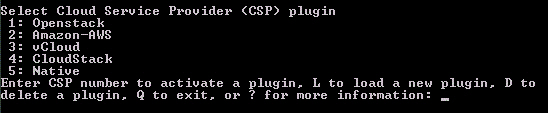
    The Configuration Tool menu launches.
    config_tool_centos.jpg
    Tip
    Tip
    To customize your provisioning process, run the Configuration Tool in Advanced Mode using the --launch-mode=advanced parameter.
  3. Supply the following information:
    Option Description
    Account ID The one you have created during service registration (see Subscribing to the Trend Micro SecureCloud Hosted Service for instructions).
    Web Service URL
    • For Trend Micro SaaS customers, leave this prompt blank (the Configuration Tool uses the default URL https://ms.securecloud.com) and press Enter.
    • For customers receiving SecureCloud service from a Managed Service Provider, type https://sp-ms.securecloud.com as the Web Service URL.
    Tip
    Tip
    The URL can be found at the SecureCloud web console > Administration > User Management page.
    Provision Passphrase Passphrase obtained during service registration.
  4. Depending on how you launched the Configuration Tool:
    • In Basic Mode (default), the Configuration Tool automatically updates the inventory, waits for the provision process to be finished, and gets the device list without prompting the user.
    • In Advanced Mode, start the Configuration Tool using the following parameters to customize the answers:
      --launch-mode=advanced
      
      1. Type yes to both update inventory and wait for provisioning questions. Type no to the wait for provisioning question if you are not provisioning a data storage device at this time.
        From the Web Console, you can now configure and then encrypt the device in question.
      2. If you want to use this instance to mount the device you want to encrypt, type yes. If you want to encrypt a device for some other instance, type no.
    Before starting the agent service, ensure that the Configuration Tool has finished getting the device list from the SecureCloud server. If there are no devices assigned to this image, the agent will not mount any device.
    Important
    Important
    Do not quit or stop the provisioning session.
  5. While the Configuration Tool is running, log on to the SecureCloud web console and configure a device for encryption.
    An encrypted device must have an Image Identity mapped in order to use the encrypted device. If it is not configured, you need to configure it in Edit Device page.
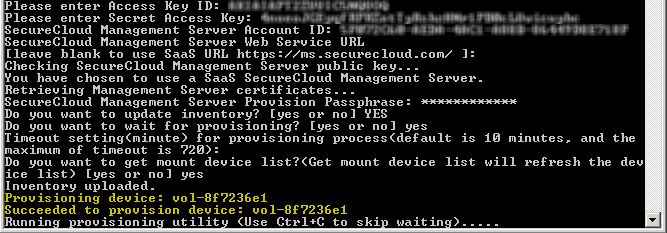
  6. Verify that the device is provisioned and type Ctrl + C to exit the Configuration Tool.
    device_provision.jpg
Ensure that you will approve the corresponding encryption key request for this device.