Subscribing to the Trend Micro SecureCloud Hosted Service Parent topic

Create and register a user account with Trend Micro to start discovering the benefits of SecureCloud.
Important
Important
If you are using a provider other than Trend Micro, please contact your vendor for the appropriate subscription link or Trial form.

Procedure

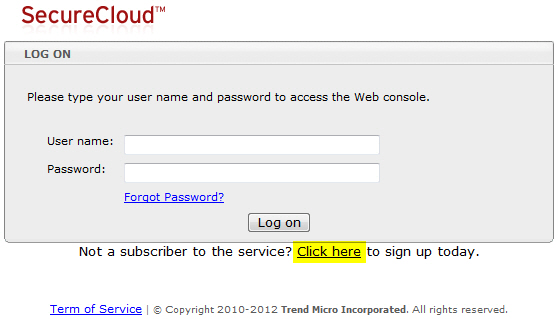
  1. Go to the SecureCloud Web Console.
    mc_register.jpg

    SecureCloud Key Management Server Web Console

  2. From the SecureCloud Web Console, click Click here.
    The Registration page appears.
  3. Provide all the necessary information, and then click Continue.
    • First Name—your first name.
    • Last Name—your last name.
    • Company Name—the name of your organization.
    • Account Name—a name that uniquely identifies you, or your organization's account in the SecureCloud SaaS Server.
    • Email Address—this is the email address that SecureCloud will use in case you need to reset your account password.
    • Password—the minimum password criteria validation indicator (password_indic.jpg) rates the strength of your password based on the variety of characters used.
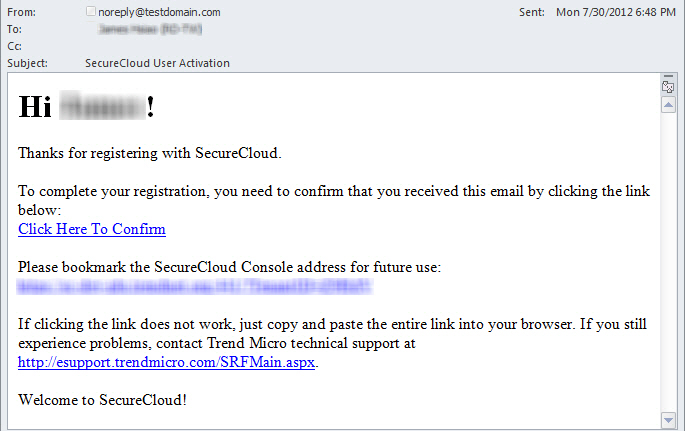
    Trend Micro sends a registration notification to the email address you specified. This email contains a link to complete the product registration process.
    pr_activation_email.jpg

    Sample registration email

  4. In the registration email, click Click Here To Confirm to complete the product-registration process.
    Depending on your role and its MFA status, you may need to activate Multi-factor Authentication before accessing the console.
  5. Proceed by activating your SecureCloud subscription.