Generate the authentication code—the second-factor
requirement in SecureCloud MFA. Do one of the following:
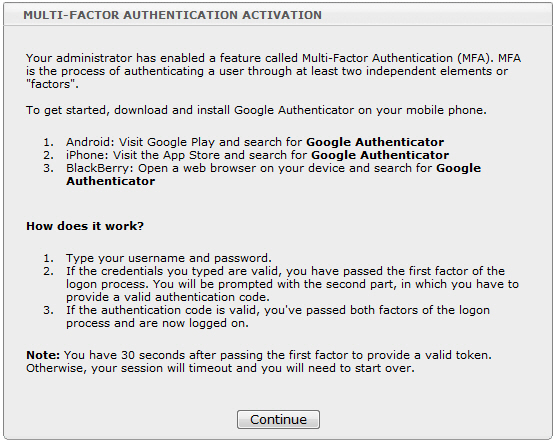
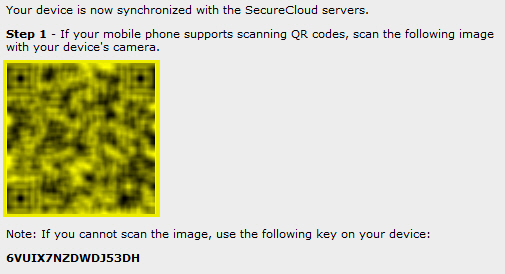
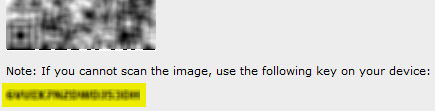
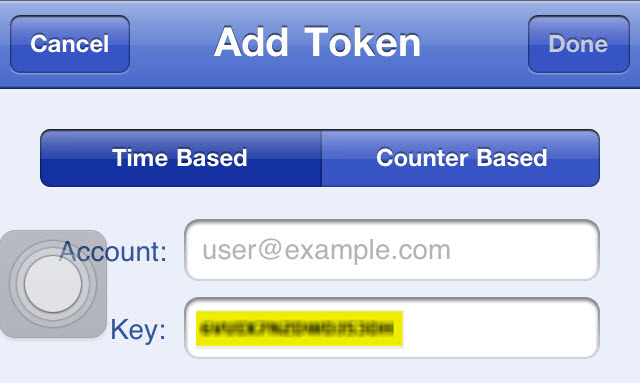
Scan the available QR code or type the supplied key in Google Authenticator.
Use any of the following elements available in the MFA
Activation page:
QR code
Scanning
the QR code from an iPhone app
Key
Typing the email address (specified during
account registration) and supplied key in Google Authenticator
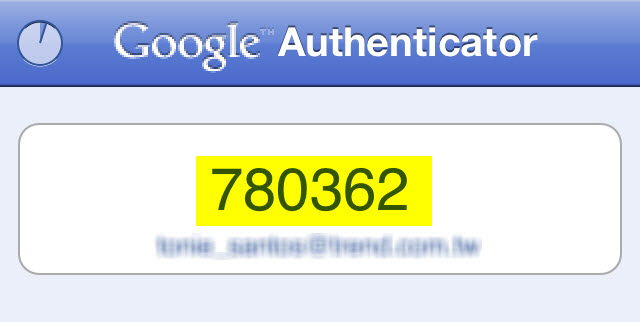
Google Authenticator creates the token and displays
the first authentication code needed.
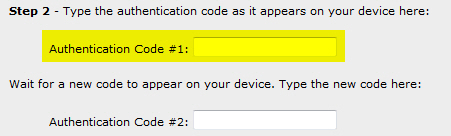
Type the first authentication code supplied by Google
Authenticator.
Tip
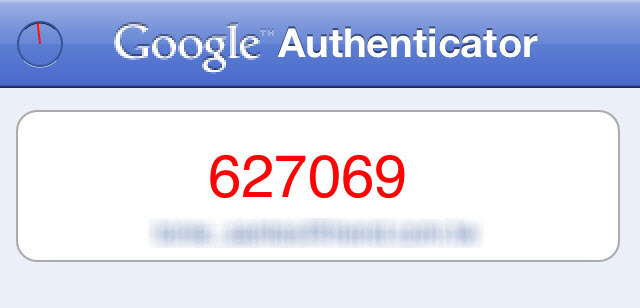
On your mobile phone, an authentication
code in red indicates that Google Authenticator is about to create
another code. Here’s an example:
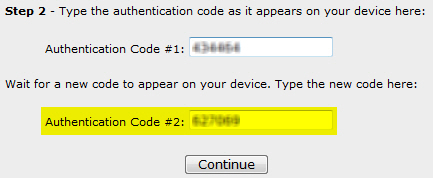
Type the second authentication code provided
by Google Authenticator in the Authentication Code #2 field,
and then click Continue:
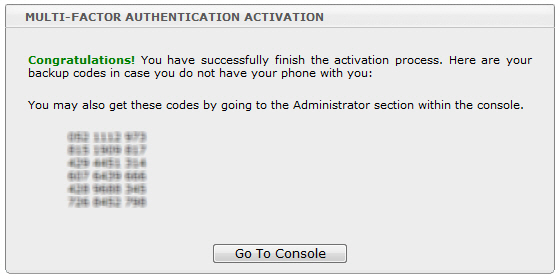
SecureCloud activates MFA and provides you with backup codes,
similar to the following: