Procedure
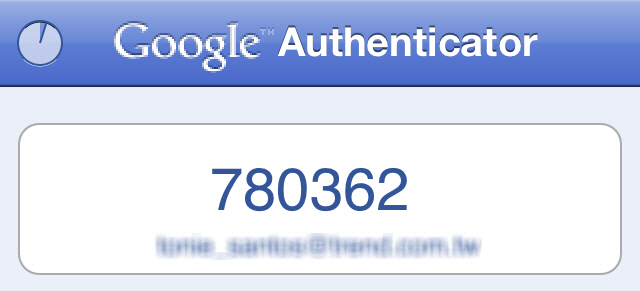
- Launch Google Authenticator
on your registered mobile device to obtain the second-factor authentication
code. Here’s an example:
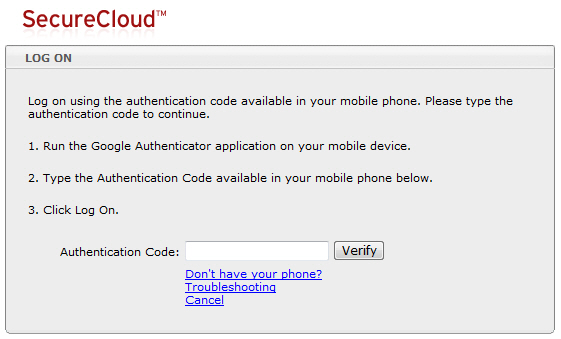
- On the SecureCloud web console, proceed to the normal logon process.
After providing your account user name and password, the Log
On Authentication Code page opens.
- Type the authentication code you obtained from Step 1, and then click Verify.
The SecureCloud web console opens.