


The Sandbox Preparation Unsuccessful screen appears when the
tool is unable to fix issues during preparation.
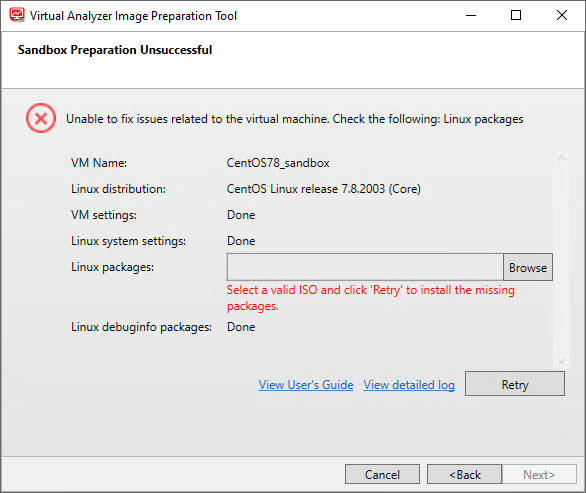
The most common reason for Linux preparation to fail is missing packages. To fix the
issue, perform the following steps:
Procedure
- To manually install the missing packages:
- Open VirtualBox and run the virtual machine.
- Install the missing packages.
- To install missing packages automatically with the tool:
- For Red Hat Enterprise Linux, sign into the virtual machine register a valid subscription account.
- On the Sandbox Preparation Unsuccessful screen, click Browse.
- Locate and select the installation ISO file for the Linux distribution used.
- Click View detailed log and perform any recommended actions.
- Click Retry.If any issues persist or continue to be unresolved, see Troubleshooting Common Issues.

Note
SandboxWizard.exesaves logs in the\logfolder where you run the tool. Logs use the following naming convention:d:\SandboxWizard\log\VATool-yyyymmddhhmmss.txtFor example:d:\SandboxWizard\log\VATool-20170925025520.txt