


Users can create customized views of the rules and checks on their accounts, groups,
and organizations using filters. These report configurations can then be saved and scheduled to be
generated at a set time each week, to cater to the specific requirements of a team,
manager, or administrator. For example, you can create a daily notification sent to
a specific set of email recipients that is filtered on Severity and only created in
the last 24hrs.
Preconfigured reports
Cloud Risk Management offers 2 preconfigured
reports:
 |
NotePreconfigured reports are only available for individual accounts.
|
Saved report configurations
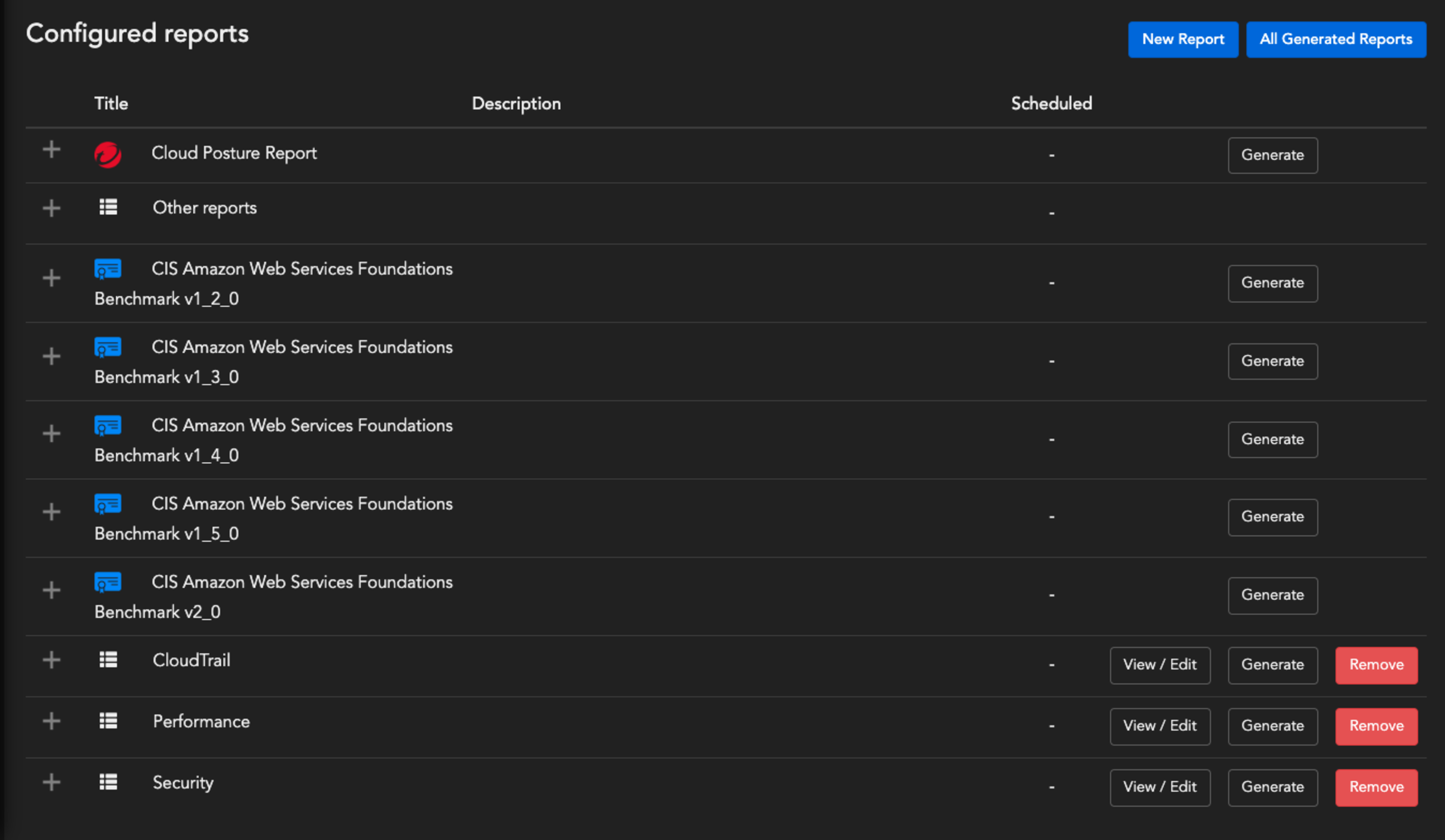
User configured reports can be identified by the menu icon. To create a
new Configured Report, click on the New Report button.
Functionality
Expanding all the reports displays a history of the configured report. Users can also
download reports from the list available in All Generated Reports or Generate reports on demand.
|
NoteThe column 'Scheduled' indicates whether you have set a frequency for the
reports to be auto-generated.
|
New Report
-
To create a new report, click New Report.
-
Specify the Title and Description.
-
To include individual checks in the report, select Include individual checks in PDF report.
-
To include account names in the report, select Account names.
Note
If there are more than 50 accounts in the targeted group, you can clear the selection to reduce the page length of the report. -
Select the Language you want the report to use.You can choose from either English or Japanese.
-
To generate the report on a repeated schedule, under Schedule Report select Enable and configure the options.
-
To configure how often to generate a report, specify the Frequency.
-
Select the Report timezone. Scheduled reports generate at midnight of the selected timezone.
-
To send the report to an external email, select Send email and specify the recipients.You can also choose whether to include a PDF or CSV copy of the report in the email.
Note
Reports will be generated at midnight of the Report timezone.
Tip
For more specific Frequency configurations, click Advanced. Click ? to view format instructions.
-
-
Select each tab to change how to view checks:
-
View by Rule
-
View by Resource
-
View by Standard or Framework
-
-
To filter checks, see Filter checks.
-
To save the report and add it to the Reports list, click Save Configuration.
-
To generate a report without saving, click Generate report.... For more information, see Generate and download report.