


The Security Agent Console Flyover opens when you hover your mouse pointer over
the small icon on the bottom right of the Security Agent console.
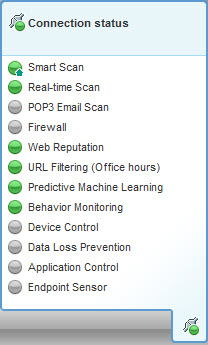
Console Flyover Icons
|
Feature
|
Icon
|
Meaning
|
|
|
Connection
|
 |
Connected to the Worry-Free Business Security Services
server
|
|
 |
Not connected to the Worry-Free Business Security Services
server, but real-time scan is
still running. The pattern file may not be up to date. Right-click the agent icon
in the
Windows Task Bar and click Update Now.
|
||
|
Smart Scan
|
 |
Connected to the Scan Server
|
|
 |
Connected to Trend Micro Smart Protection Network
|
||
|
|
Unable to connect to the Scan Server or Smart Protection
Network; protection is reduced as Security Agents are unable to send scan queries.
|
||
 |
Smart Scan is not available due to network connection issues. Check your network connection
or settings.
|
||
 |
Smart Scan is disabled. Using Conventional Scan
|
||
|
Application Control
|
 |
On
|
|
 |
Lockdown in progress: Application Control is scanning the endpoint to
create a complete application inventory.
|
||
 |
Lockdown: Only applications installed during the last inventory scan or that
the administrator added to an Allowed rule can execute
|
||
|
|
Off
|
||
|
All other features
|
|
On
|
|
|
|
Off
|
