


The Sandbox Preparation Unsuccessful screen appears when the tool is unable to fix issues during preparation.
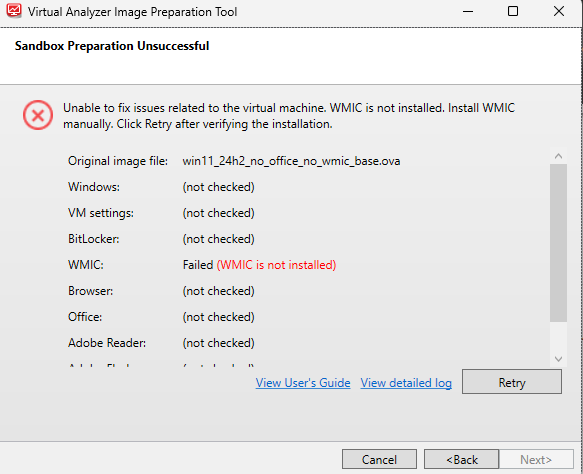
The most common reason for Windows preparation to fail is missing software. To fix
the issue, perform the following steps:
Procedure
- Open VirtualBox and run the virtual machine.
- Install the missing WMIC software.
- Open command prompt.
- Run the command DISM /Online /Add-Capability /CapabilityName:WMIC~~~~
- Follow the Microsoft documentation to install WMIC if the feature is not installed on your system: How to install WMIC Feature on Demand on Windows 11.
- Go back to the tool and click View detailed log.
- Perform any recommended actions in the log.
- Click Retry.If any issues persist or continue to be unresolved, see Troubleshooting Common Issues.