


Register VMware Workspace ONE as your Enterprise Mobility Management (EMM) provider with Google.
 |
ImportantThe following Workspace ONE UEM instructions and screen captures were valid as of
July, 2022. For further help, check your Workspace ONE UEM documentation.
|
Procedure
- Sign into the Workspace ONE UEM console, and select any level of organization group (OG) from the hierarchy structure.
- Access the Android EMM Registration screen and begin to
register with Google.
-
If you selected the "Customer" type OG:
-
On the Getting Started tab, select Workspace ONE.
-
Under Android EMM Registration in the DEVICE ENROLLMENT section, click CONFIGURE.
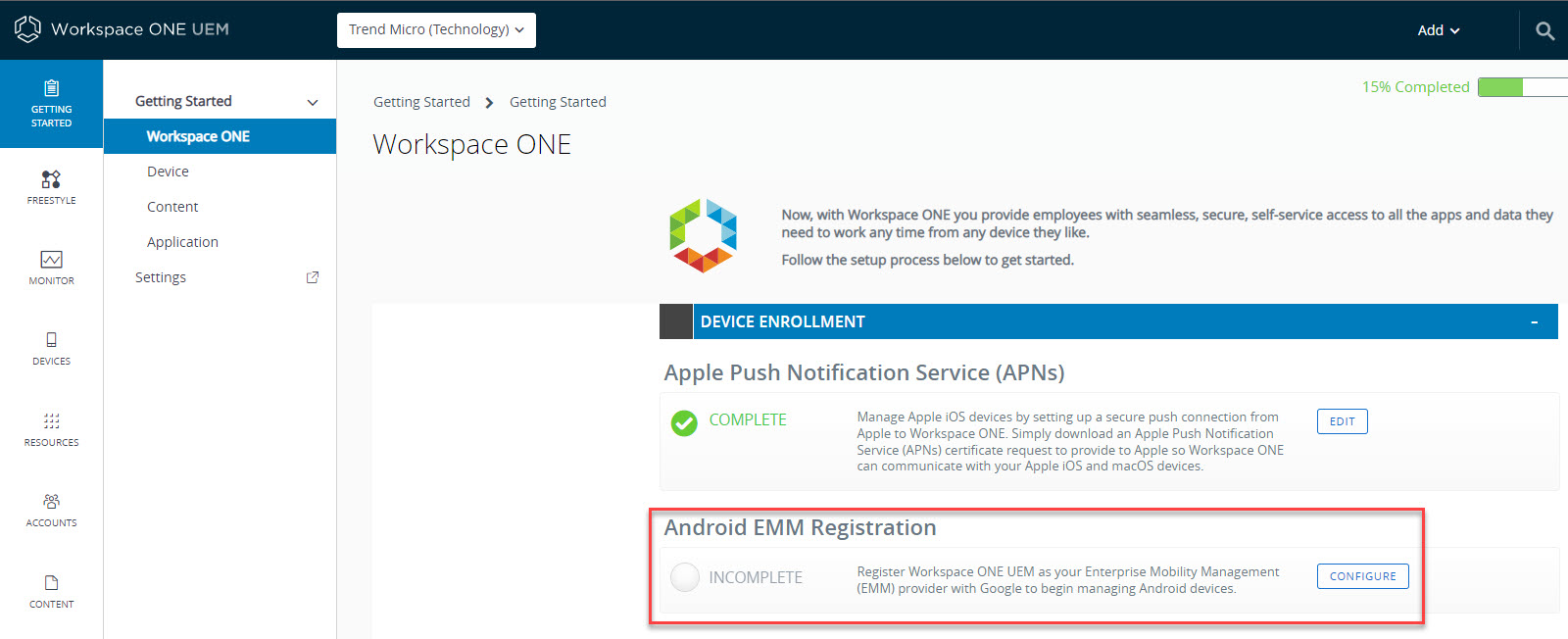
-
On the Android EMM Registration screen, click REGISTER WITH GOOGLE.
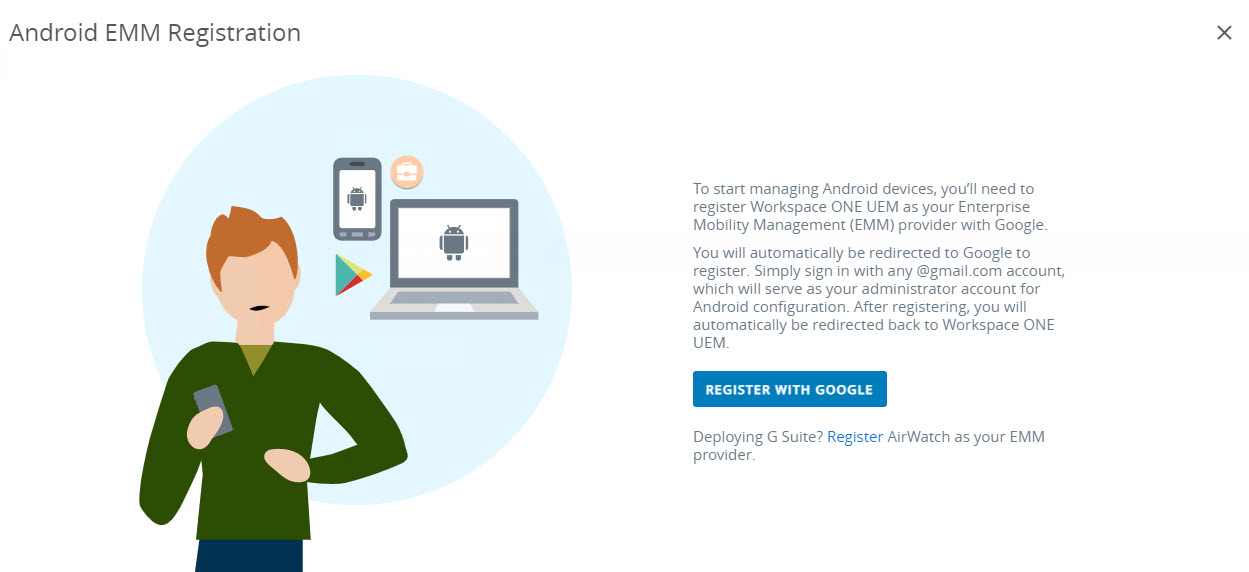
-
-
If you selected a non-"Customer" type OG:
-
Go to .
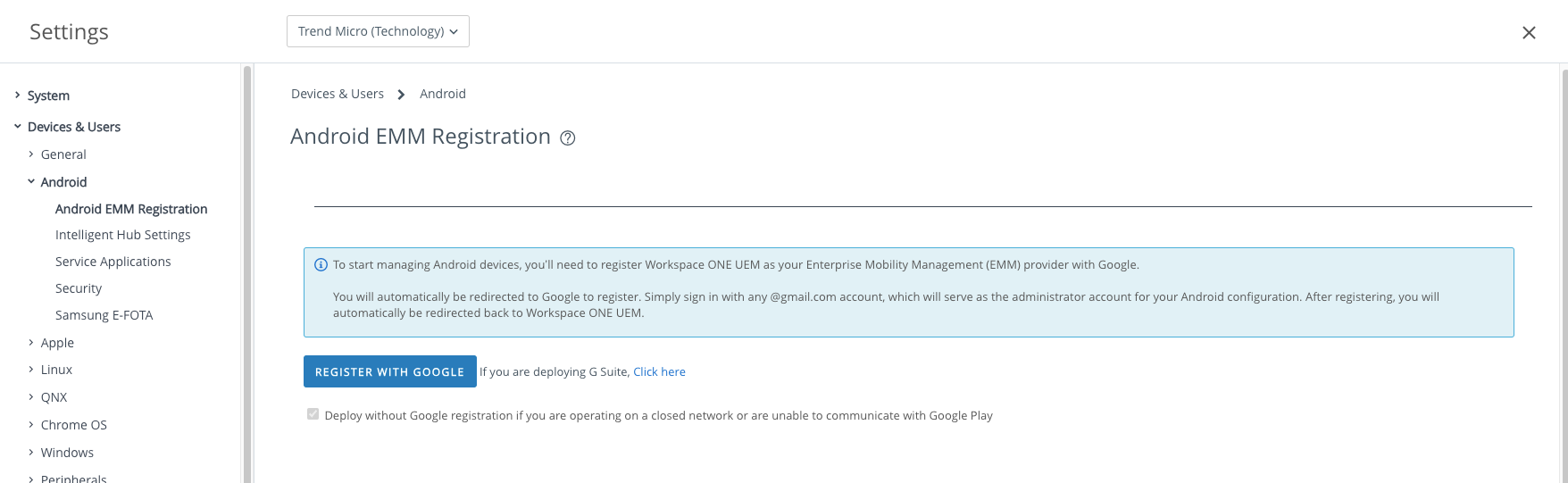
-
Click REGISTER WITH GOOGLE.
-
-
- Sign in with a Google Account and click Get started.
- Type your business name and click Next.
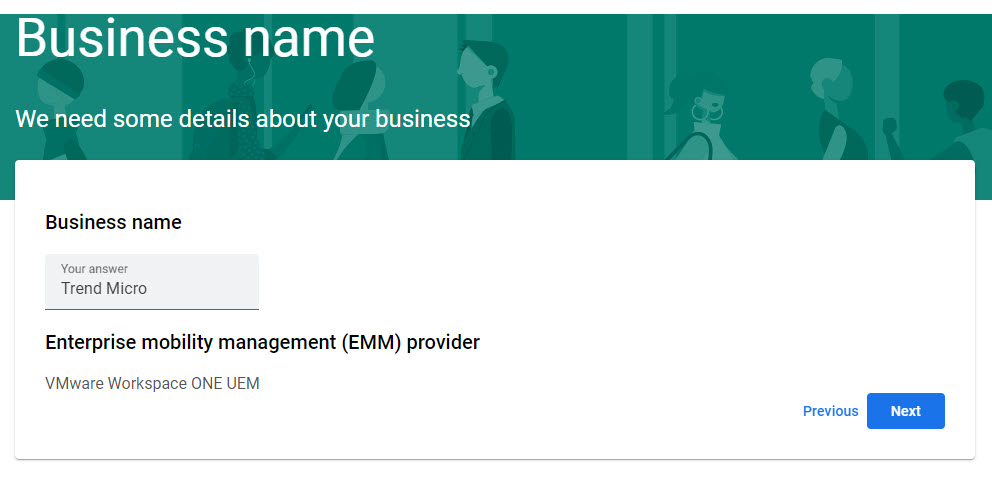
- (Optional) Type your contact details.
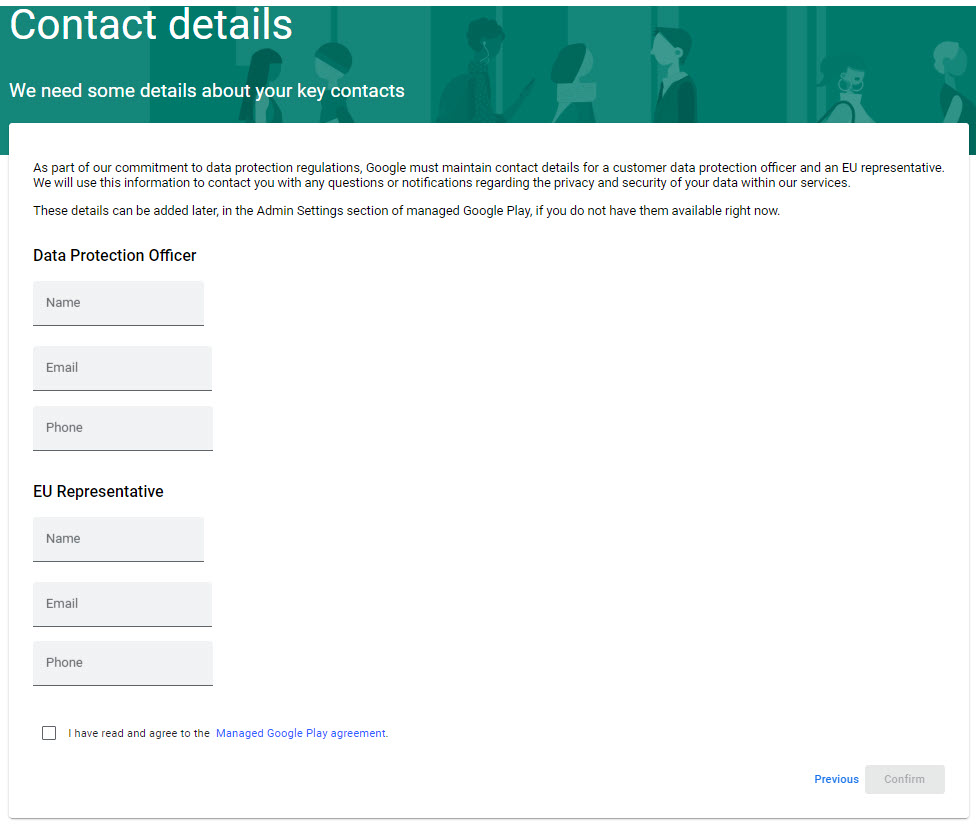
- Accept the Managed Google Play agreement and click Confirm.
- Click Complete Registration.
Workspace ONE is registered as your Android EMM provider and you are redirected back
to the Workspace ONE UEM console.