


Use the Log database to search for logs by configurable search conditions.
To configure a log search task:
-
Do one of the following to open the Log database:
-
From the ScanMail Configuration left menu, click Log Database.
-
Open
smvlog.nsf.
-
-
Choose .
-
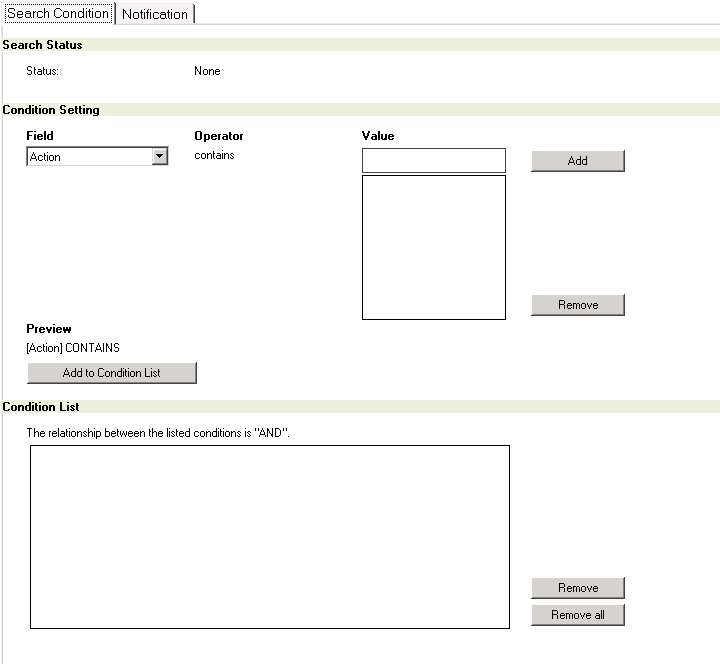
On the Search Condition tab page, set the search conditions:
-
Search Status section: shows the status of a search task, including None, Task running, and Task finished.
-
Condition Setting section: adds conditions to the condition list.To add a condition, select a field option, type a value, click Add to add the value, and then click Add to Condition List.
-
Condition List section: lists the conditions set for the current search.To remove a condition, select the condition from the condition list and click Remove. To remove all existing conditions, click Remove All.
-
-
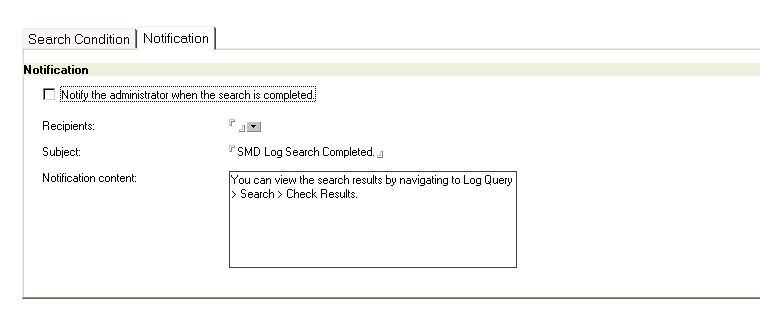
On the Notification tab page, enable mail notification.
-
Select the Notify the administrator when the search is completed check box.
-
Select recipients for the notification mail.
-
Type the subject and content for the notification mail.
-
To search for logs:
-
On the action bar, click Search.
-
Click Refresh to check whether the search is completed.
-
When the search is completed, click Check Results to view search results.To clear the results, click Clear Results.
 |
NoteThe log search function allows you to run only one search task at a time. That is,
if a task is running, another task cannot start. When you start a second task, the
search results for the previous task will be removed automatically.
|