The wizard-based ScanMail uninstallation uses steps that guide you with the uninstallation
process.
Removing SMD 5.8 SP1 for Windows
To run an automatic ScanMail uninstallation using a graphical desktop environment:
-
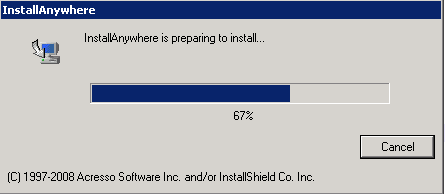
Click . The uninstallation progress screen appears.
-
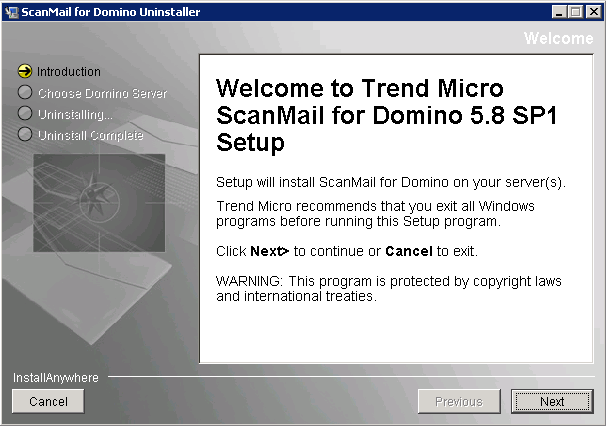
After the uninstallation progress screen completes, the Welcome to Trend Micro ScanMail for Domino Uninstaller screen appears. Click Next; the wizard proceeds to the Choose Domino Server step.
-
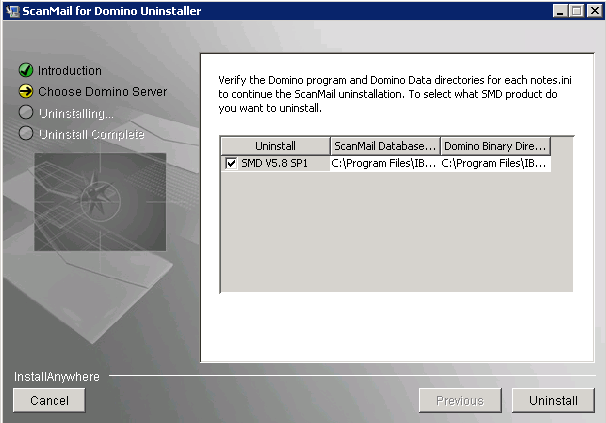
On the Choose Domino Serverstep, select the server(s) from which to remove ScanMail and click Uninstall.
-
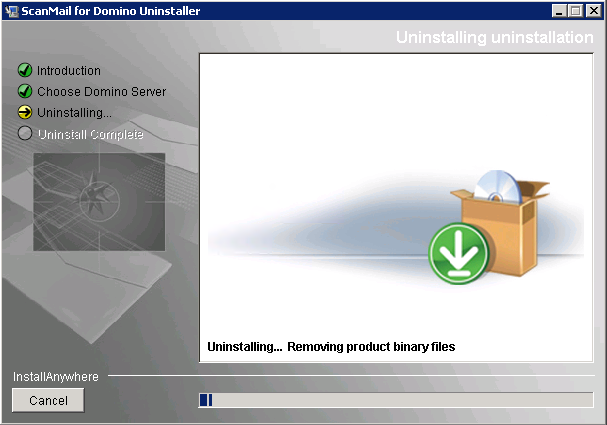
After you execute the uninstall process, the Uninstalling progress screen displays.
-
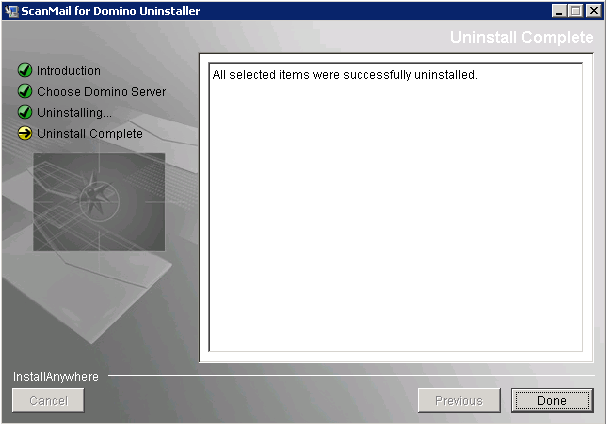
When the Uninstalling process finishes, the Uninstall Complete screen appears. Click Done.

Note
On the Windows platform, you may also remove ScanMail by selecting ScanMail for Domino from the Windows Start > Control Panel > Add/Remove Programs.
Removing SMD 5.8 SP1 for Linux
To remove SMD 5.8 SP1, perform the following steps:
-
Open Terminal, and navigate to the
uninstallfolder under SMD installation path (for example,/opt/trend/SMID/uninstall). -
Run the uninstallation file (
uninstaller) using command./uninstaller.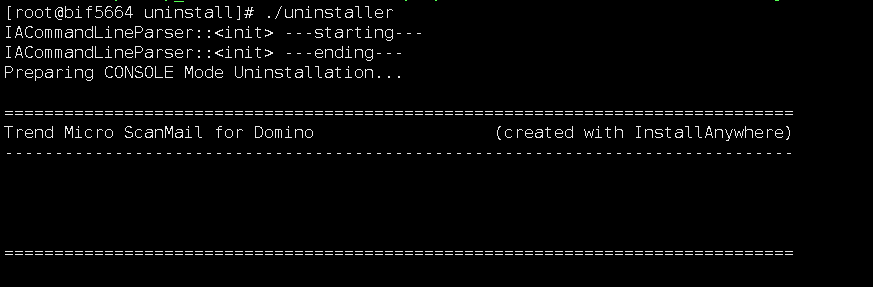 The SMD uninstall Welcome screen appears.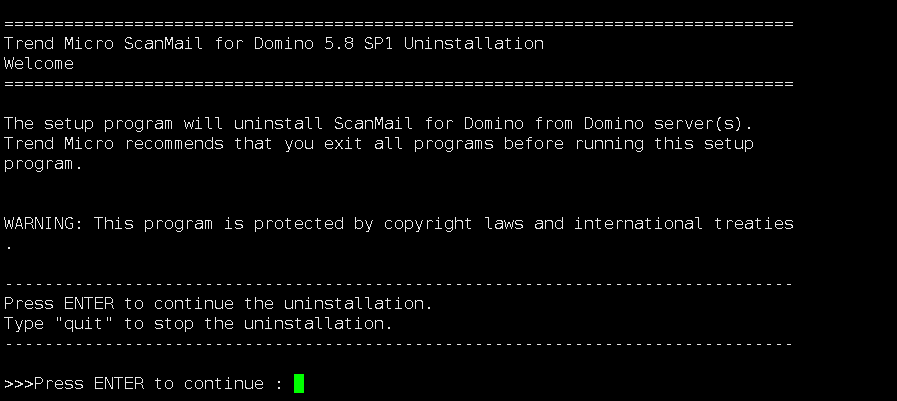
-
Press Enter. The Select Domino Server screen appears.
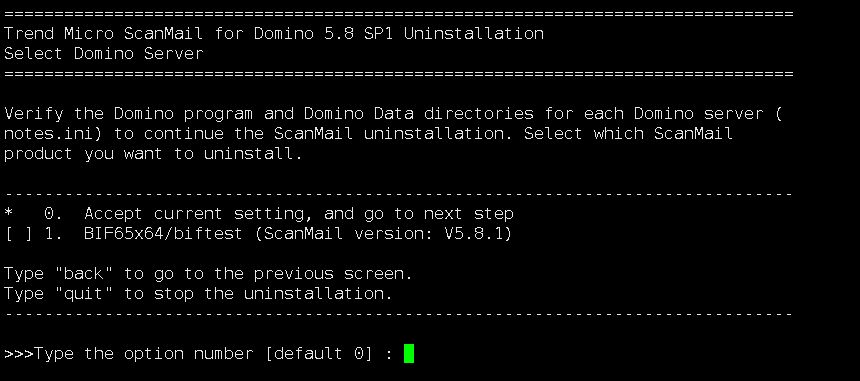 On the screen shown above, the list of all Domino servers installed is displayed. Select or deselect the domino server(s) you want to remove or keep.To select or deselect the Domino server:
-
Type the corresponding number. For example, if you want to select the server named as BIF65x64/biftest from the list shown on the screen, type
1. -
Press Enter.
-
-
Type
0(zero) to accept current settings and start the uninstallation of selected Domino server(s). -
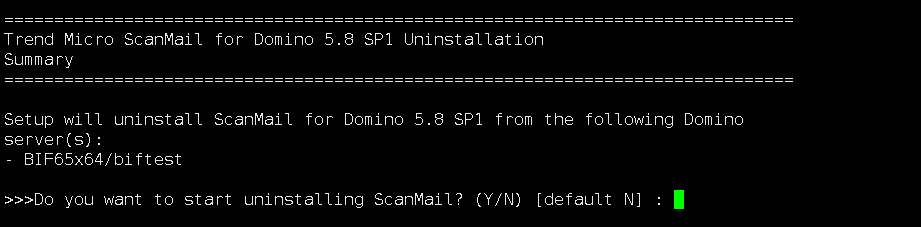
Press Enter. The Summary screen appears, showing the list of selected Domino server(s) to be uninstalled.
-
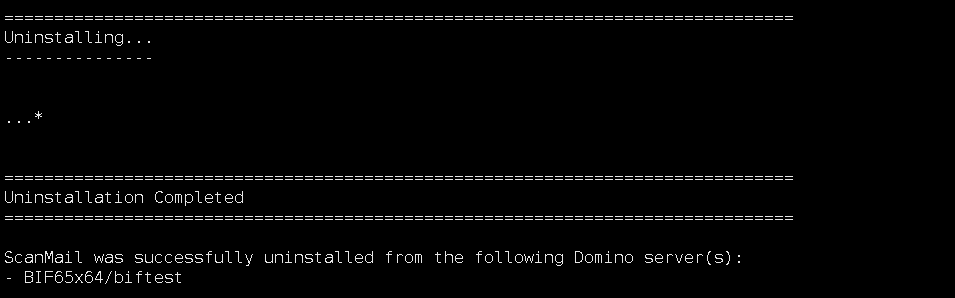
Type
Yoryand press Enter. The uninstallation begins.After the uninstallation process completes,Uninstallation Completedmessage appears on the screen.