


Use the Log database to enable or disable Database Scan History deletion.
Deleting Database Scan History Automatically
Use the Log database to schedule ScanMail to delete Database Scan History older than
the specified number of days automatically. This is especially useful if a Domino
server handles a large amount of traffic.
To delete Database Scan History automatically:
-
Do one of the following to open the Log database:
-
From the ScanMail Configuration left menu, click Log Database.
-
Open
smvlog.nsf.
-
-
From the left menu of the Log database, click . The Automatic / Manual Deletion Settings screen appears .
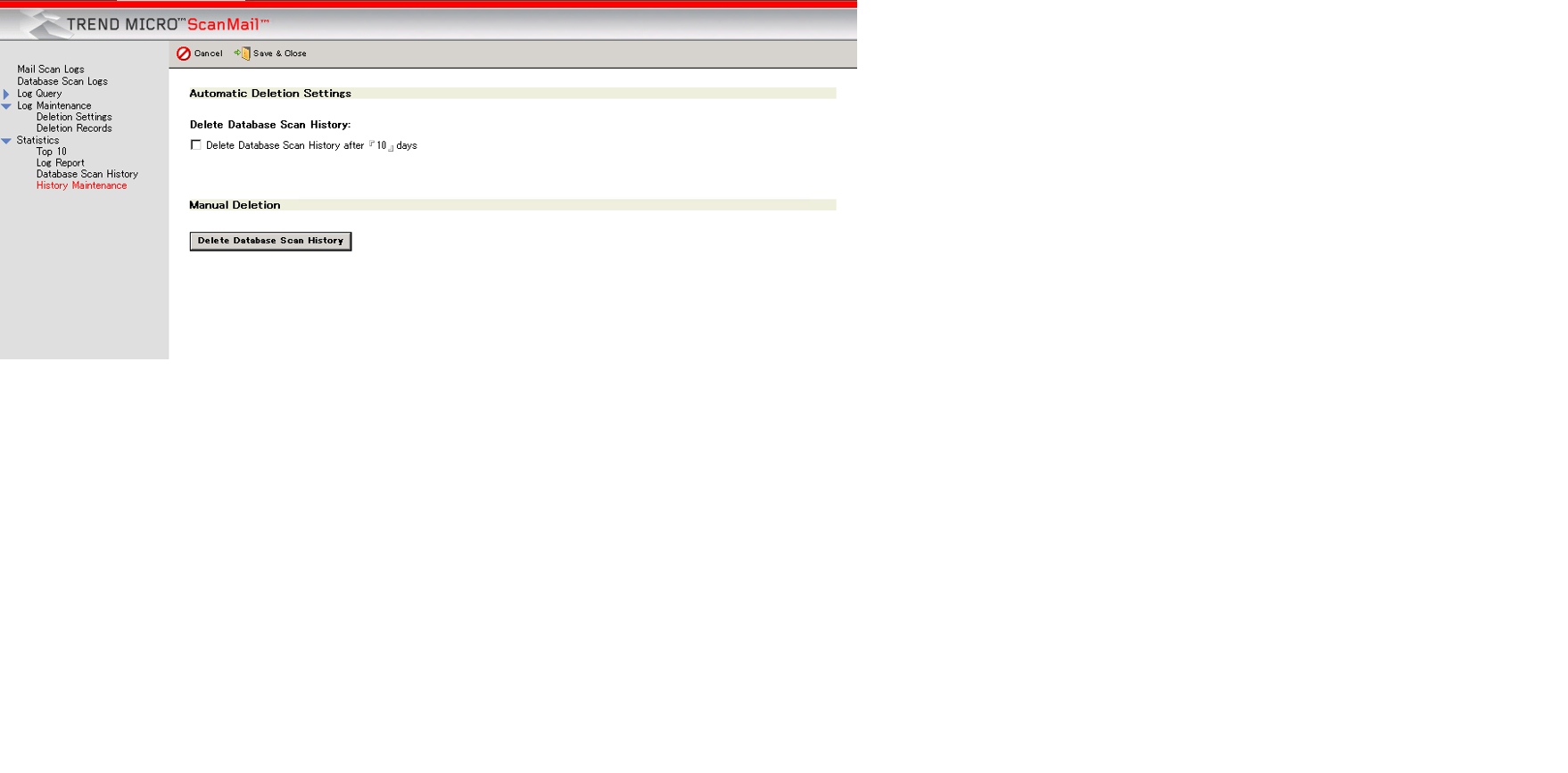
-
On the Automatic Deletion Settings section, select Delete Database Scan History after.
-
Type the number of days that corresponds to the age of Database Scan History that ScanMail will save.
-
Click Save & Close.
Deleting Database Scan History Manually
Use the Log database to delete Database Scan History manually.
To delete Database Scan History manually:
-
Do one of the following to open the Log database:
-
From the ScanMail Configuration left menu, click Log Database.
-
Open
smvlog.nsf.
-
-
From the left menu of the Log database, click . The Automatic / Manual Deletion Settings screen appears.
-
On the Manual Deletion section, select Delete Database Scan History to delete all existing Database Scan History available on the Log database.