


Procedure
- From the Hyper-V Server Manager menu, right-click the Windows Server 2012 R2 server,
and select .The New Virtual Machine Wizard appears.
- Click Next. The Specify Name and Location screen appears.
- In the Name field, type a meaningful machine name. If you plan to store the virtual machine to another folder, select Store the virtual machine in a different location and provide the correct location.
- Click Next.The Specify Generation screen appears.
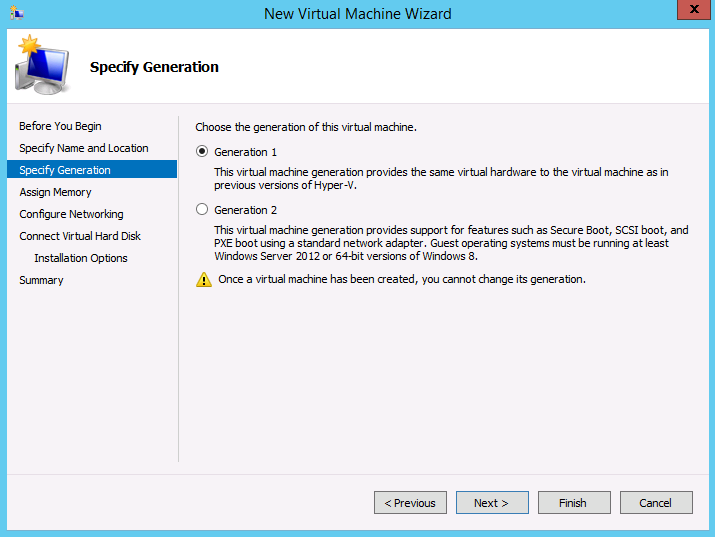
Specify Generation - Select Generation 1 and click Next. The Assign Memory screen appears.
- Allocate at least 4096MB of memory for IMSVA.

Tip
Trend Micro recommends allocating 8192MB of RAM.The maximum number of virtual processors allowed on Windows 2008 R2 Hyper-V is 4. To add more than four core CPUs and more than 4096MB memory, setnuma=offon Hyper-V and IMSVA. - Click Next. The Configure Networking screen appears.
- Select the virtual network created in Creating a Virtual Network Assignment.
- Click Next. The Connect Virtual Hard Disk screen appears.
- Specify at least 120GB disk space for IMSVA.
Tip
Trend Micro recommends 250GB or more of disk space for message quarantine and logging purposes. - Specify a location to store the virtual hard disk, and
click Next. The Installation Options screen appears.
- Click Install an operating system from a boot CD/DVD-ROM, specify the
installation ISO file for IMSVA, and then click Next. The Completing the New Virtual Machine Wizard screen appears.
- Verify your settings and click Finish.The virtual machine is now ready to be powered on to begin the installation process.