

Procedure
- Contact Trend Micro Technical Support to obtain a copy of the Trend Micro Performance Tuning Tool.
- Unzip
TMPerfTool.zipto extractTMPerfTool.exe. - Place
TMPerfTool.exein the<Client installation folder>or in the same folder asTMBMCLI.dll. - Right-click
TMPerfTool.exeand select Run as administrator. - Read and accept the end user agreement and then click OK.
- Click Analyze. The tool starts
to monitor CPU usage and event loading.A system-intensive process is highlighted in red.
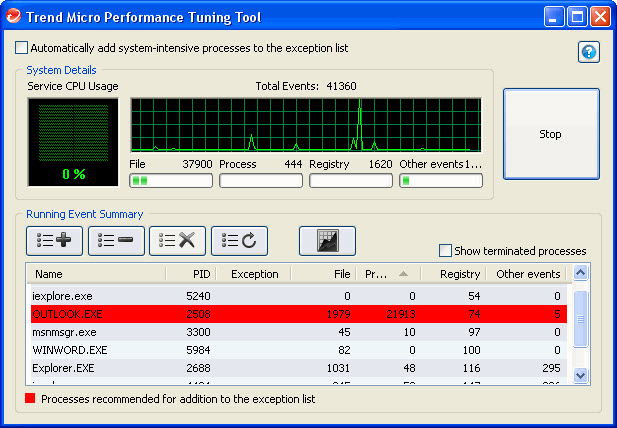
System-intensive process highlighted - Select a system-intensive process and click the Add
to the exception list (allow) button (
 ).
). - Check if the system or application performance improves.
- If the performance improves, select the process again
and click the Remove from the exception list button
(
 ).
). - If the performance drops again, perform the following
steps:
- Note the name of the application.
- Click Stop.
- Click the Generate report button
(
 ) and then save the .xml file.
 - Review the applications that have been identified as conflicting and add them to the Behavior Monitoring exception list. For details, see the Administrator’s Guide.