


Use the Command Line Interface (CLI) to deploy a Service Gateway virtual appliance with Proxmox cluster.
Verify that system requirements are met. For more information, see Service Gateway appliance system
requirements.
 |
NoteThe following Proxmox instructions and screen captures were valid as of December 3,
2025. For further help, check your Proxmox documentation.
|
Procedure
- Go to .
- Click Download Virtual Appliance.The Service Gateway Virtual Appliance panel appears.
- Select Proxmox (QCOW2).
- Click Download Disk Image to download a QCOW2 file.

Tip
Copy the registration token for later steps. The registration token will expire within 24 hours if not used. - Upload the disk image to the Proxmox cluster.
# scp <SG_image_path> root@<VM_IP>:/<SG_image_path>
scp sg-va-3.0.24.10508-standard.qcow2 root@192.168.1.1:/SG/sg-va-3.0.24.10508-standard.qcow2
- Create a script file named
pve-import-qcow2.shin Proxmox with the following content:#!/bin/bash ############################################# # Proxmox VE - Import QCOW2 Image Script # Purpose: Import qcow2 image and configure VM # Parameters: <vm_num> <qcow2_image_path> ############################################# set -e # Exit on error # Check parameter count if [ $# -ne 2 ]; then echo "[ERROR] Invalid number of parameters" echo "Usage: $0 <vm_num> <qcow2_image_path>" echo "Example: $0 100 /path/to/image.qcow2" exit 1 fi VM_NUM=$1 QCOW2_PATH=$2 STORAGE="local-lvm" echo "[INFO] Starting process for VM $VM_NUM with image: $QCOW2_PATH" # Verify VM exists echo "[INFO] Checking if VM $VM_NUM exists..." if ! qm status $VM_NUM &>/dev/null; then echo "[ERROR] VM $VM_NUM does not exist" exit 1 fi echo "[INFO] VM $VM_NUM exists" # Verify qcow2 file exists echo "[INFO] Checking if qcow2 image file exists..." if [ ! -f "$QCOW2_PATH" ]; then echo "[ERROR] File not found: $QCOW2_PATH" exit 1 fi echo "[INFO] Image file exists" # Step 1: Import disk image echo "[INFO] Step 1/5: Importing disk image to $STORAGE..." echo "[INFO] This may take a while depending on image size..." echo "" # Import disk and suppress verbose output, only show progress qm importdisk $VM_NUM "$QCOW2_PATH" $STORAGE 2>&1 | grep -E "(transferred|successfully imported)" || true # Verify import completed successfully sleep 2 if ! qm config $VM_NUM | grep -q "^unused0:"; then echo "" echo "[ERROR] Import failed - unused0 disk not found" exit 1 fi echo "" echo "[INFO] Disk import successful" # Step 2: Get unused0 disk name echo "[INFO] Step 2/5: Getting unused disk information..." UNUSED_DISK=$(qm config $VM_NUM | grep "^unused0:" | awk '{print $2}') if [ -z "$UNUSED_DISK" ]; then echo "[ERROR] Could not find unused0 disk" echo "[WARN] Please check VM $VM_NUM configuration" exit 1 fi echo "[INFO] Found unused disk: $UNUSED_DISK" # Step 3: Attach disk as virtio0 echo "[INFO] Step 3/5: Attaching disk as virtio0..." if ! qm set $VM_NUM --virtio0 $UNUSED_DISK >/dev/null 2>&1; then echo "[ERROR] Failed to attach disk" exit 1 fi echo "[INFO] Disk attached successfully" # Step 4: Adjust boot order (put virtio0 first) echo "[INFO] Step 4/5: Adjusting boot order..." # Get current boot order CURRENT_BOOT=$(qm config $VM_NUM | grep "^boot:" | sed 's/boot: //' | sed 's/order=//') if [ -z "$CURRENT_BOOT" ]; then # If no boot order is set, use default NEW_BOOT_ORDER="virtio0;scsi0;ide2;net0" echo "[WARN] No existing boot order found, using default" else # Remove existing virtio0 (if present) and add to front CURRENT_BOOT=$(echo "$CURRENT_BOOT" | sed 's/virtio0;//g' | sed 's/;virtio0//g' | sed 's/virtio0//g') # Clean up possible extra semicolons CURRENT_BOOT=$(echo "$CURRENT_BOOT" | sed 's/^;//' | sed 's/;$//' | sed 's/;;/;/g') if [ -z "$CURRENT_BOOT" ]; then NEW_BOOT_ORDER="virtio0" else NEW_BOOT_ORDER="virtio0;$CURRENT_BOOT" fi fi echo "[INFO] New boot order: $NEW_BOOT_ORDER" if ! qm set $VM_NUM --boot order=$NEW_BOOT_ORDER >/dev/null 2>&1; then echo "[ERROR] Failed to set boot order" exit 1 fi echo "[INFO] Boot order configured successfully" # Step 5: Set SMBIOS tag echo "[INFO] Step 5/5: Setting SMBIOS tag..." if ! qm set $VM_NUM --smbios1 "manufacturer=Proxmox,product=ProxmoxVE" >/dev/null 2>&1; then echo "[ERROR] Failed to set SMBIOS tag" exit 1 fi echo "[INFO] SMBIOS tag configured successfully" # Complete echo "" echo "=========================================" echo "[INFO] All steps completed successfully!" echo "[INFO] VM $VM_NUM has been configured" echo "=========================================" echo "" echo "[INFO] VM Configuration Summary:" qm config $VM_NUM | grep -E "^(virtio0|boot|smbios1):" exit 0 - Create a virtual machine on the Proxmox cluster.TrendAI™ recommends following the CPU and memory requirements specified for Service Gateway installation.The following uses Standard Image as an example to describe how to create a VM.
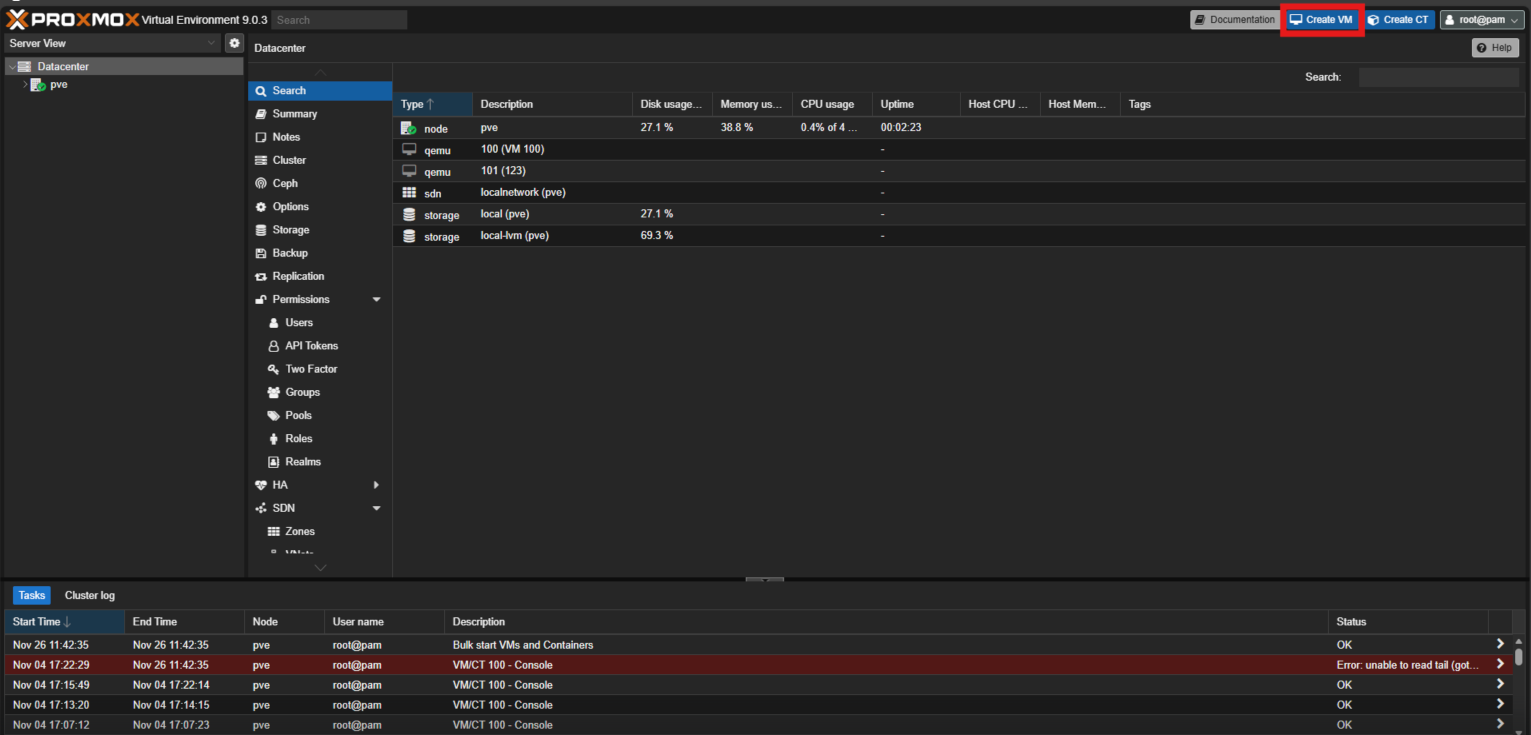
- In Proxmox, click Create VM.
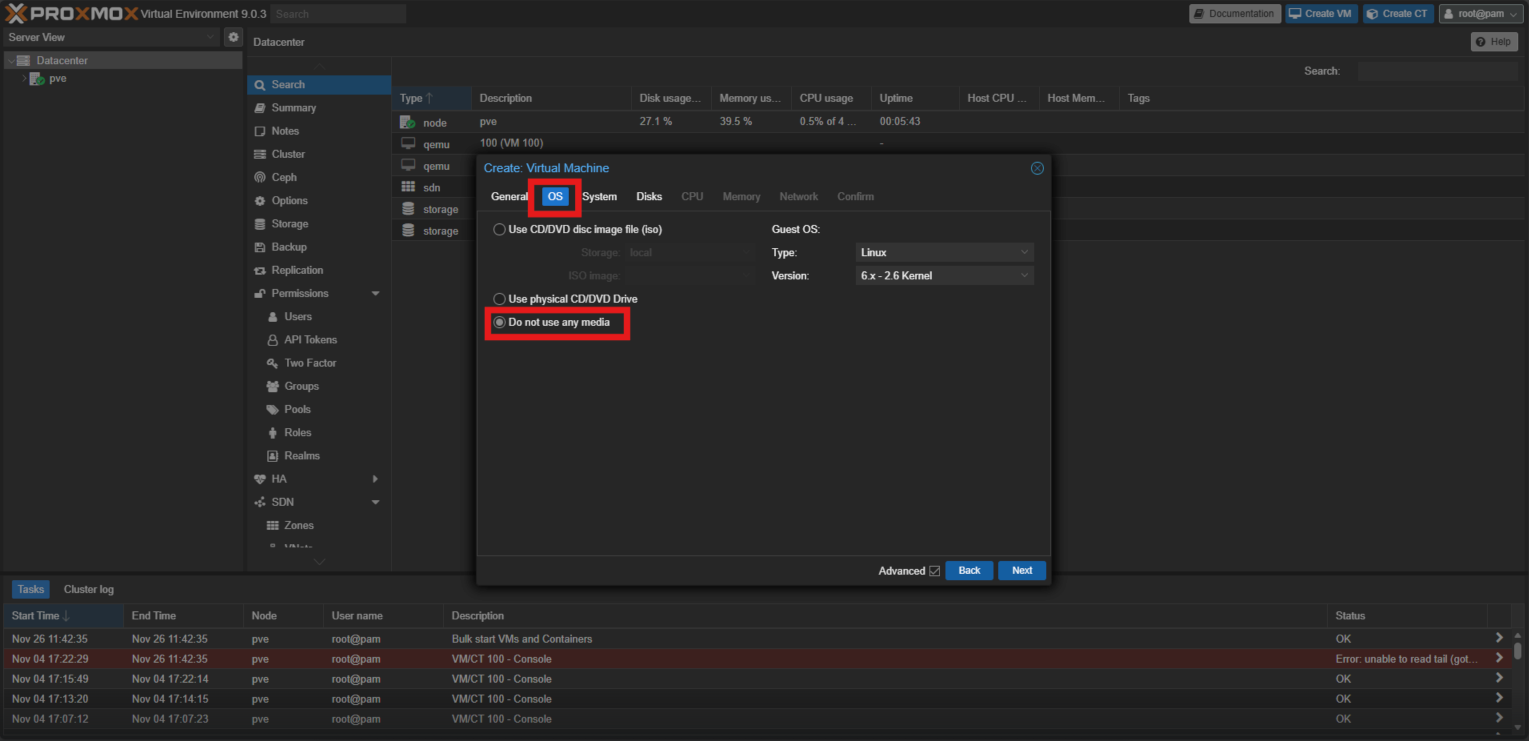
- In the Create: Virtual Machine window, select the OS tab, choose Do not use any media, and click Next.
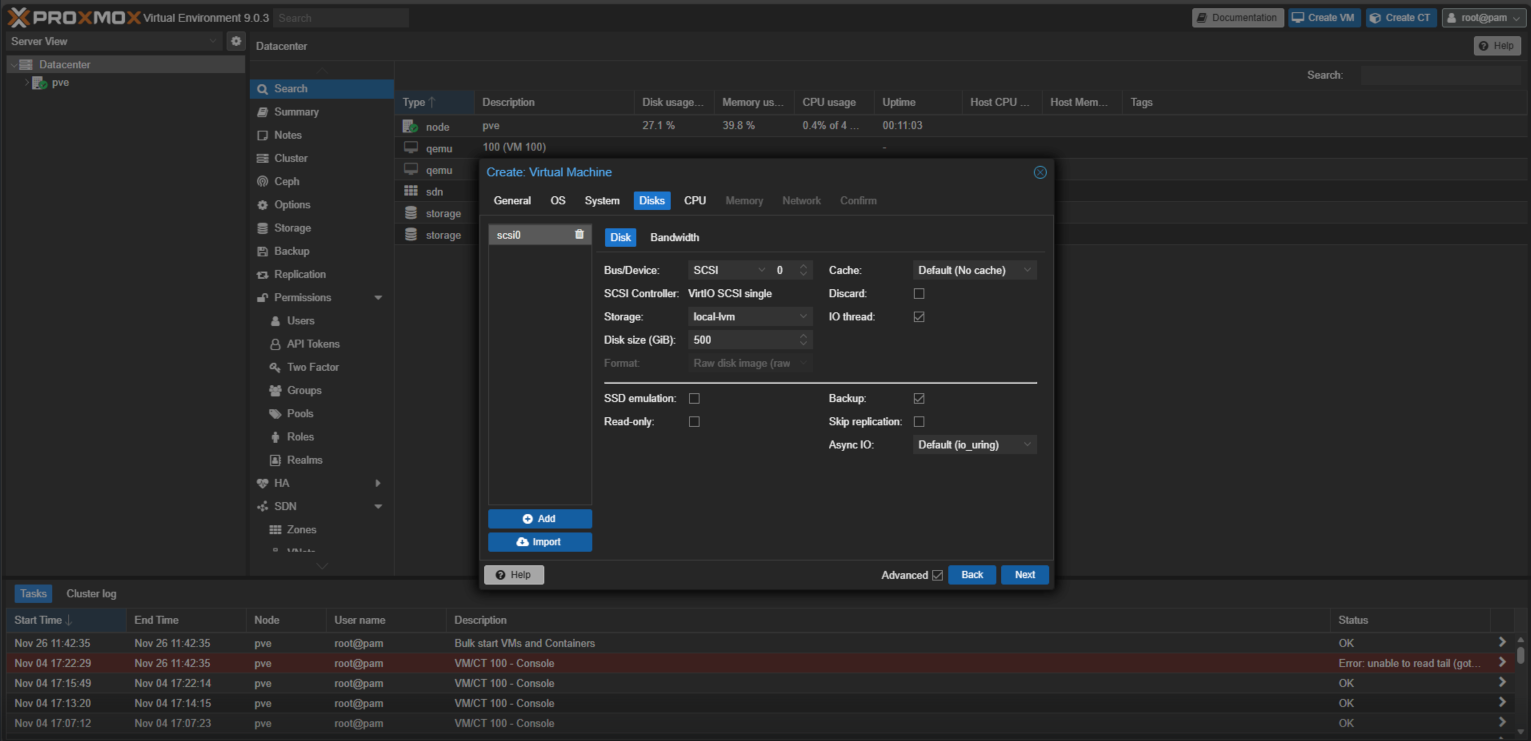
- On the Disks tab, specify the requirements of Service Gateway installation and click Next.
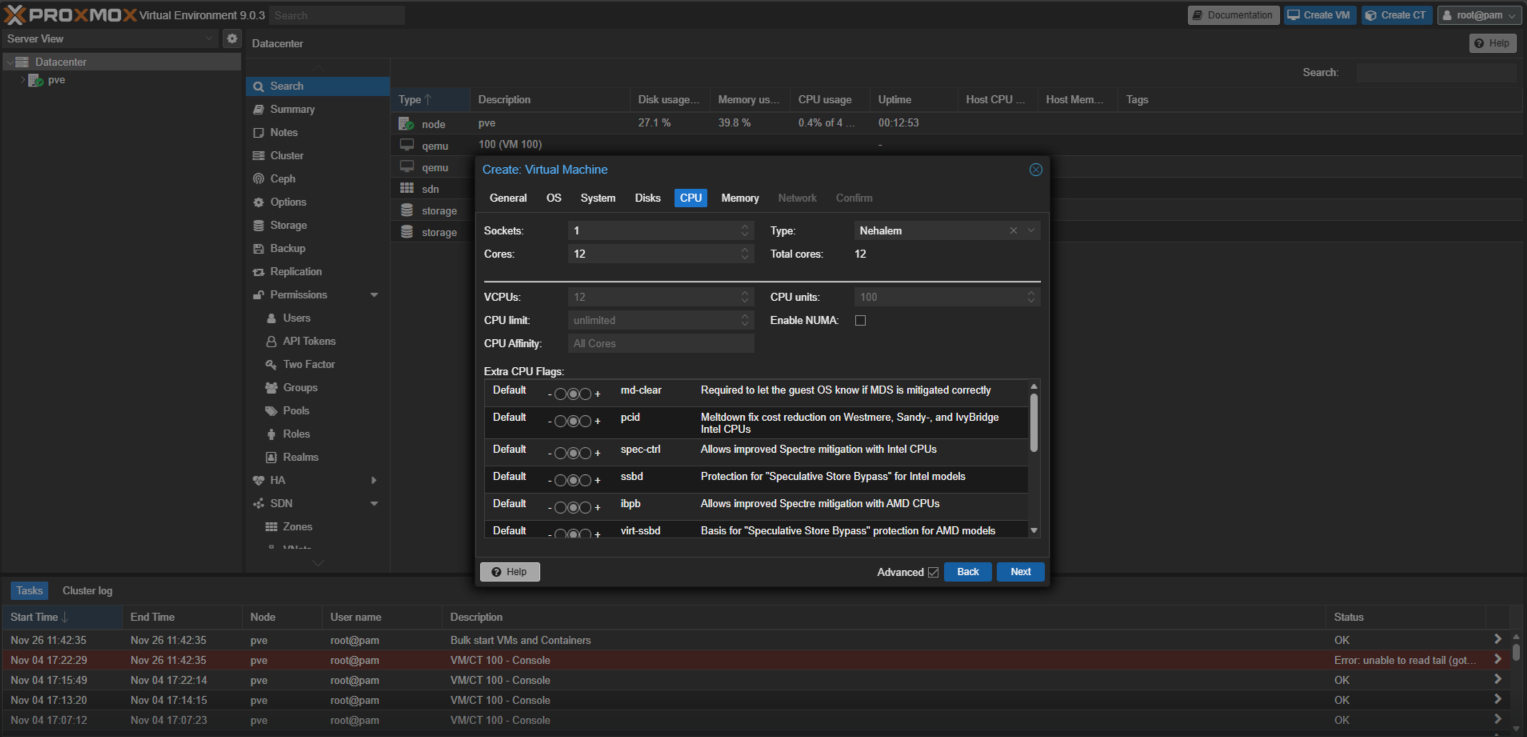
- On the CPU tab, specify the requirements of Service Gateway installation and click Next.
- On the Memory tab, specify the requirements of Service Gateway installation and click Next.
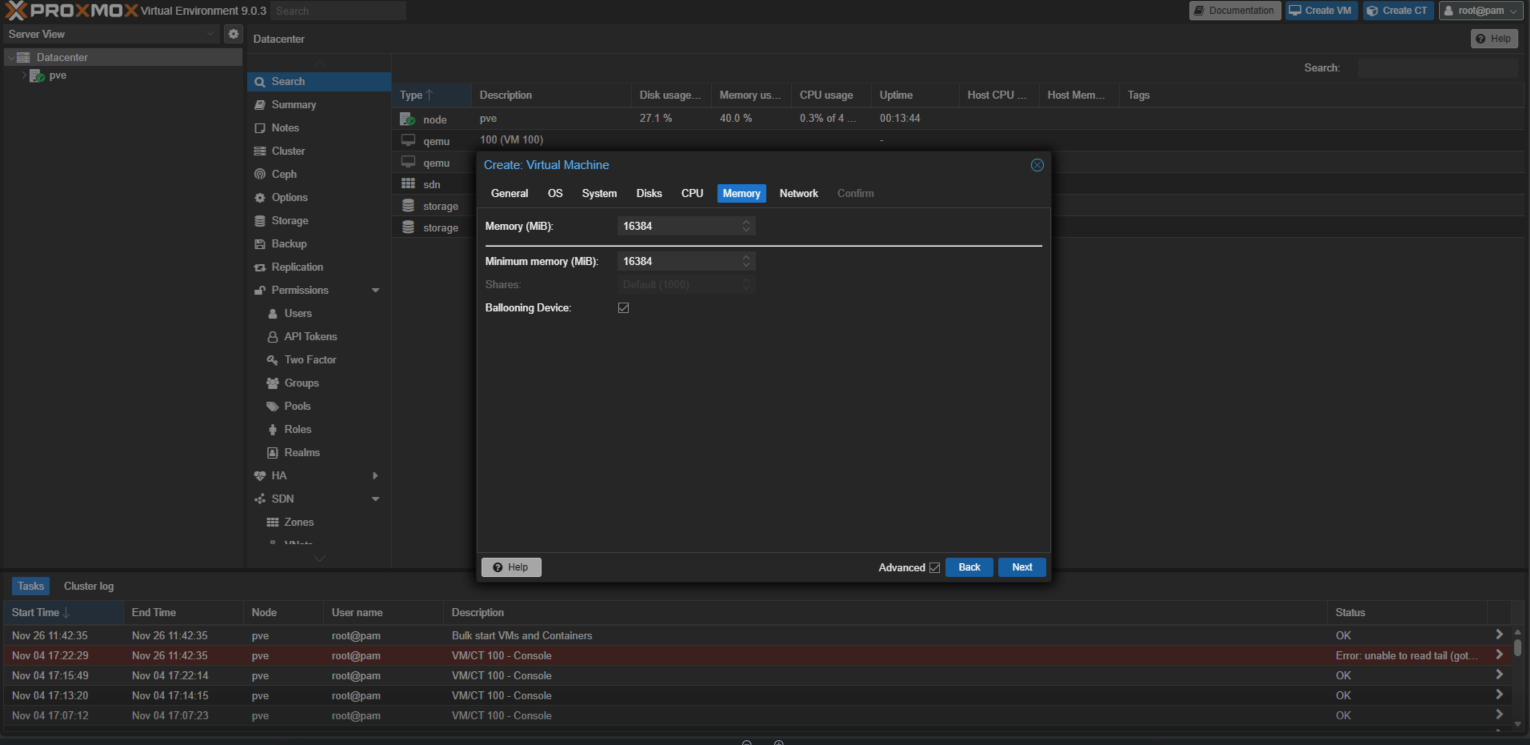
- Check the VM configuration and click Finish to create the VM.
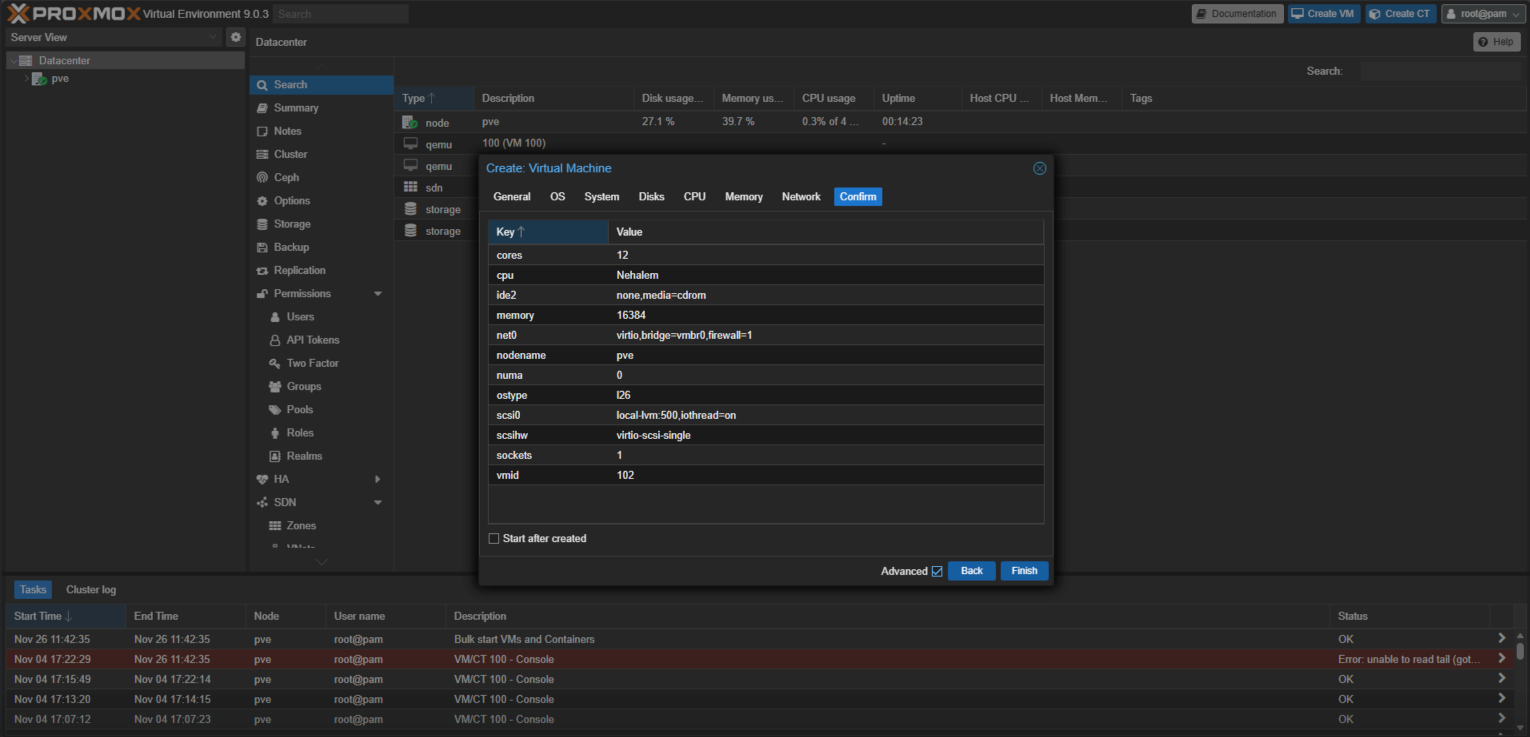
- In Proxmox, click Create VM.
- Log on to the Proxmox cluster and run the
pve-import-qcow2.shfile to deploy the Service Gateway appliance.# bash <SG_script_path> <VM_NUM> </SG_image_path> bash pve-import-qcow2.sh "100" "sg-va-3.0.24.10508-standard.qcow2"
- On the Service Gateway virtual appliance, log on to the Command Line Interface (CLI)
with the default credentials.User name: adminPassword: V1SG@2021
- Change your password.
- Type enable and press the
ENTERkey to enable administrative commands. Provide your password when asked.The command prompt changes from > to #. - Configure the required network settings using the following CLISH commands.
Configure network primary ipv4.static <interface> <ip_cidr> <gateway> <dns1> [dns2]
                              [cni]
Configure static IPv4 network settings for the primary network interface<interface>: Name of the network interface (for example, eth0)<ip_cidr>: IPv4 address of the network interface in CIDR notation<gateway>: Gateway router address<dns1>: Primary DNS server address[dns2]: Secondary DNS server address[cni]: Internal network address pool (IP address ending in .0.0) - To register the Service Gateway virtual appliance to TrendAI Vision One™, use an SSH tool, such as the latest version of PuTTY, and using an account with
administrator privileges, type the following command.
register <registration_token>You can obtain the token from the same screen you download the virtual appliance on TrendAI Vision One™ (step 4). - Use the CLI to configure other settings, if required.For more information on available commands, see Service Gateway CLI commands.For details on setting up a virtual appliance with two network cards, see Service Gateway Virtual Appliance dual network card configuration.