


Connect Salesforce tenants to share Salesforce metadata and information on system misconfigurations with TrendAI Vision One™.
Procedure
- Go to .
- Locate and click the Salesforce card.
- Click one of the following to connect a tenant:
-
Click Add a production tenant.
-
Click Add a sandbox tenant.
An unconfigured tenant appears in the list. -
- In the Status column, click Grant
permissions to allow TrendAI Vision One™ access to Salesforce data managed by the
tenant.

Note
Click Details to view the associated apps and specific permissions for the tenant. - On the Salesforce console, sign in as an administrator or create a user profile with
adequate permissions to grant access to TrendAI Vision One™.

Important
If your Transaction Security Policy setting blocks external IP addresses, exempt TrendAI™ IP addresses. For the IP addresses, please consult with the Customer Success team or the Sales team.-
If you are a standard Salesforce user, take the following step to create a Salesforce user profile with adequate permissions.
-
If you have a Salesforce administrator account, skip the following step and directly grant access to TrendAI Vision One™.
-
- If you have a standard Salesforce user account, you must create a Salesforce user
profile with the necessary permissions to grant access.
Important
Creating the new Salesforce user profile might require administrator permissions. If so, contact a Salesforce administrator or a user with adequate permissions to continue.- Go to .
- Click New Profile.
- Under Existing Profile, select Standard User.
- Click Edit.
- Enable the following permissions for the custom profile:
-
Apex REST Services
-
API Enabled
-
Approve Uninstalled Connected Apps
-
Customize Application
-
Manage Custom Permissions
-
Manage Salesforce CRM Content
-
Manage Users
-
Modify Metadata Through Metadata API Functions
-
Query All Files
-
View All Custom Settings
-
View All Data
-
View All Profiles
-
View All Users
-
View Event Log Files
-
View Health Check
-
View Roles and Role Hierarchy
-
View Setup and Configuration
-
- Click Save.
- Go back to .
- Click Edit and select the new custom profile from the Profile list.
- Select Salesforce CRM Content User.
Important
Note that if this user profile is ever deactivated in the Salesforce console, TrendAI Vision One™ can no longer synchronize Salesforce data.
- Click Allow in the Allow Access? window.
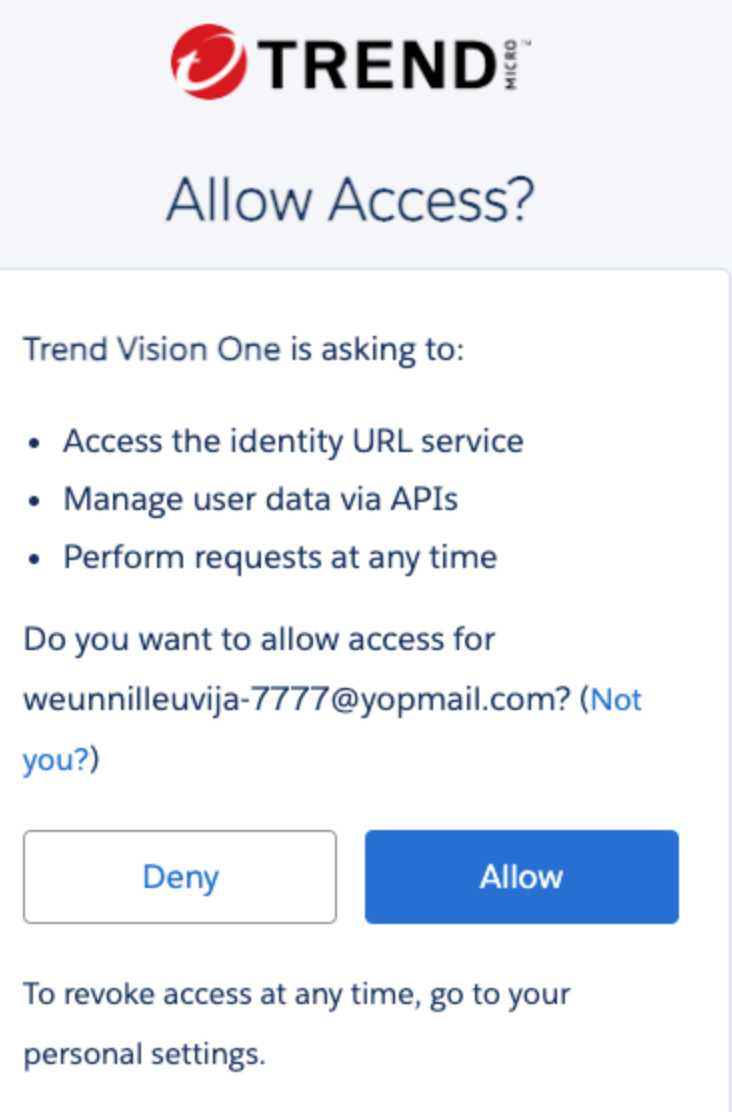 If permissions are successfully granted, the Salesforce tenant begins sharing data with TrendAI Vision One™. The Tenant name and Tenant ID appear in .If permissions are not granted, click Grant Permissions to try again.
 - To connect additional tenants, click Add Tenant, select a tenant type, and repeat the previous step.
- If you decide to prevent associated TrendAI Vision One™ apps from accessing data managed by the tenant,
block the access permissions.
- Click Block permissions in the Status column of the tenant.
- In the confirmation window, click Block.TrendAI Vision One™ can no longer access the Salesforce data managed by the tenant.
Note
Blocking permissions for an individual Salesforce tenant does not remove TrendAI Vision One™ completely from Salesforce. To remove TrendAI Vision One™ completely, search for and block the related connected app in the Salesforce console. For more information, see Salesforce documentation.