Before you begin
You purchased your SecureCloud license from
a reseller or partner who created your account via the Licensing
Management Platform (LMP).
Procedure
- Using one of the supported Web browser, go to
the service URL.
 |
Important
If you lost
the correct URL, contact the reseller or partner who issued the
license of the account.
|
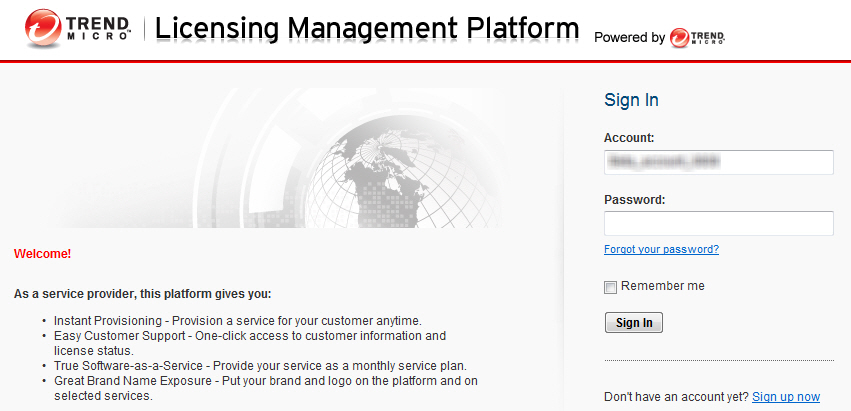
- Supply your account and password, and then click Sign
In.
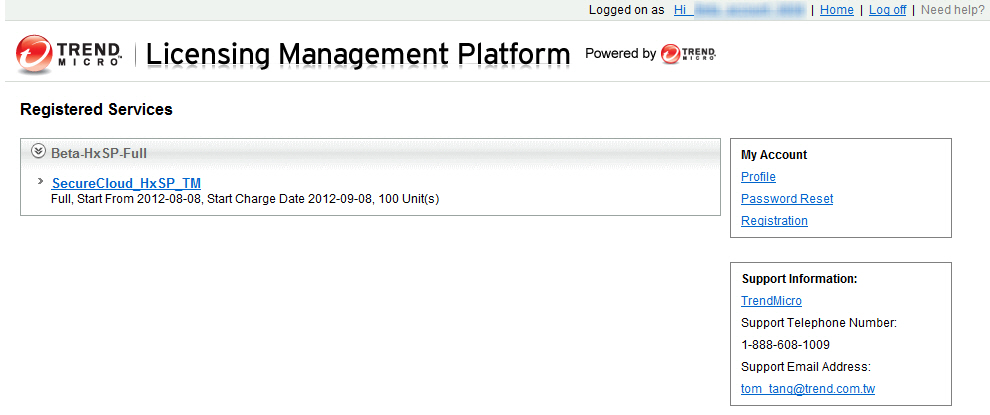
- On the Registered Services page,
click the corresponding SecureCloud web console link similar to
the following:
Clicking the SecureCloud link on the Registered Services
page opens SecureCloud web console > Running Instances page.
The Logged on as <user
name> information (example below) on the web console
header shows your account