Creating a Storage Device to be Encrypted Parent topic

After SecureCloud confirms your registration, you need to create a data storage device for encryption. You can either create a new device or depending on your cloud service provider, attach an existing one. The information below are basic steps to create a storage device. Please check your Cloud Service Provider’s documentation for details.

Procedure

  • Amazon EC2
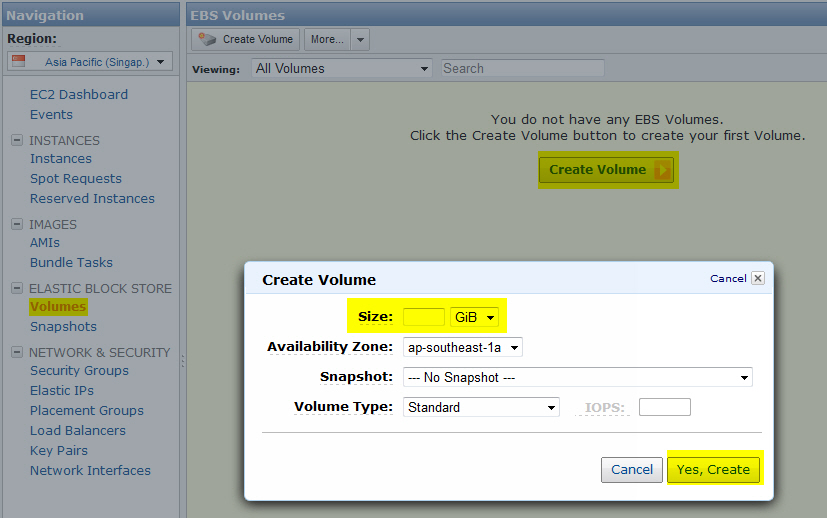
    1. From your Amazon AWS console, create a new volume to encrypt. Choose Amazon EC2 > Volumes.
    2. Click Create Volumes and specify the necessary information in the Create Volume page.
      device_create_amazon.jpg
  • Amazon IAM-enabled device
  • CloudStack
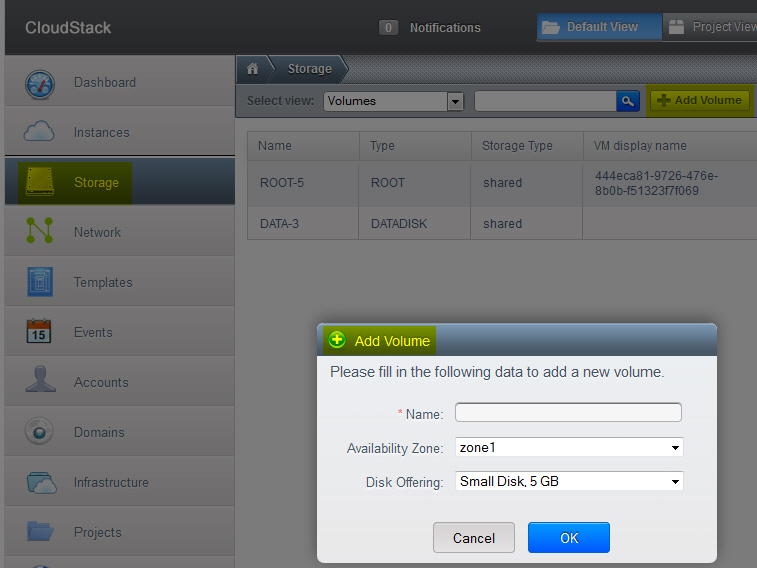
    1. Log on to the CloudStack UI with your appropriate credential.
    2. Click Storage > Volume.
      device_create_cloudstack.jpg
  • vCloud
    WARNING
    WARNING
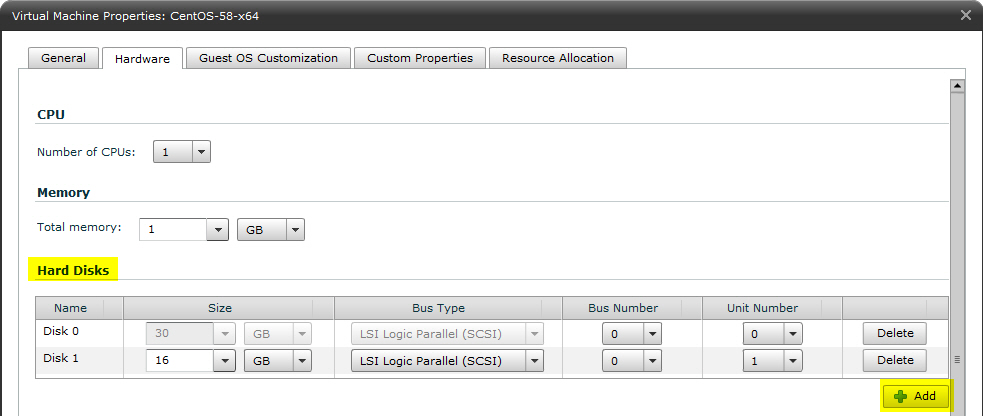
    When adding a data disk to a vCloud vApp, the disk must be attached to a free, logical unit number (LUN) on the first controller, which is in use. Additionally, the use of mixed type of SCSI controllers are not supported and may result in failure to encrypt the disk, or unwanted loss of data.
    1. Log on to the vCloud Director using your appropriate credentials, and then navigate to My Cloud > VMs.
    2. Right-click the VM to which you want to add a disk, and then select Properties from the drop-down menu.
    3. Click the Hardware tab, and then click Add.
      device_create_vcloud.jpg
    4. Click OK to save the new hard disk.
    After you create the data storage in the CSP, you may need to restart the instance to get the new device(s).
    Note
    Note
    You cannot add hard disks when your VM is powered on. The status needs to be Partially Powered off or Powered off.