Customizing the Licensing Management Platform Logon Page Parent topic

Procedure

  1. Log on to Trend Micro Licensing Management Platform console.
    Tip
    Tip
    Contact your Service Provider for the URL.
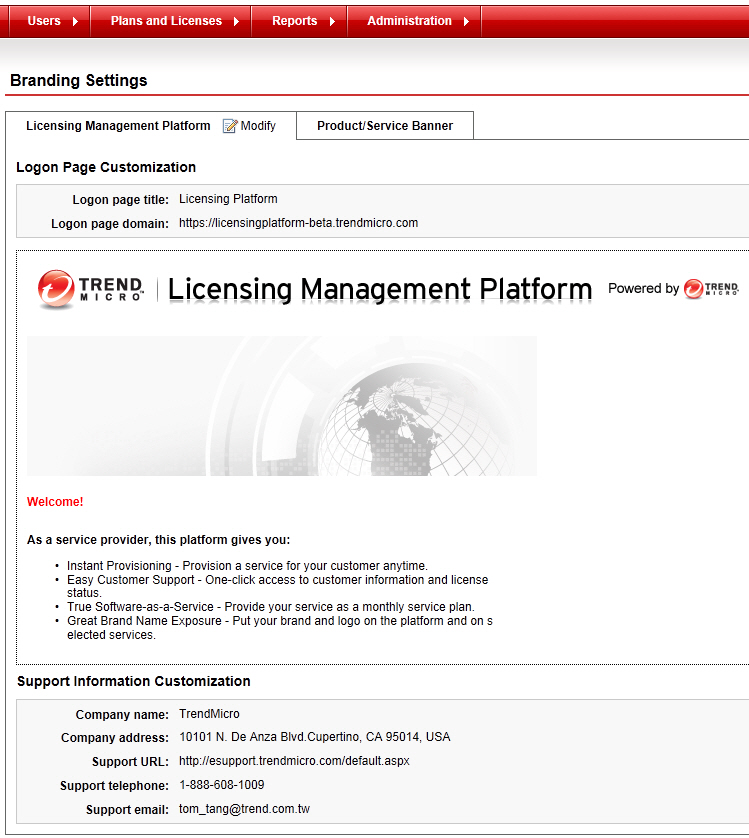
  2. Click Administration > Branding > Branding Settings on the navigation bar.
    The Branding Settings page opens.
    branding_logon_page.jpg
  3. Click Modify on the Licensing Management Platform tab.
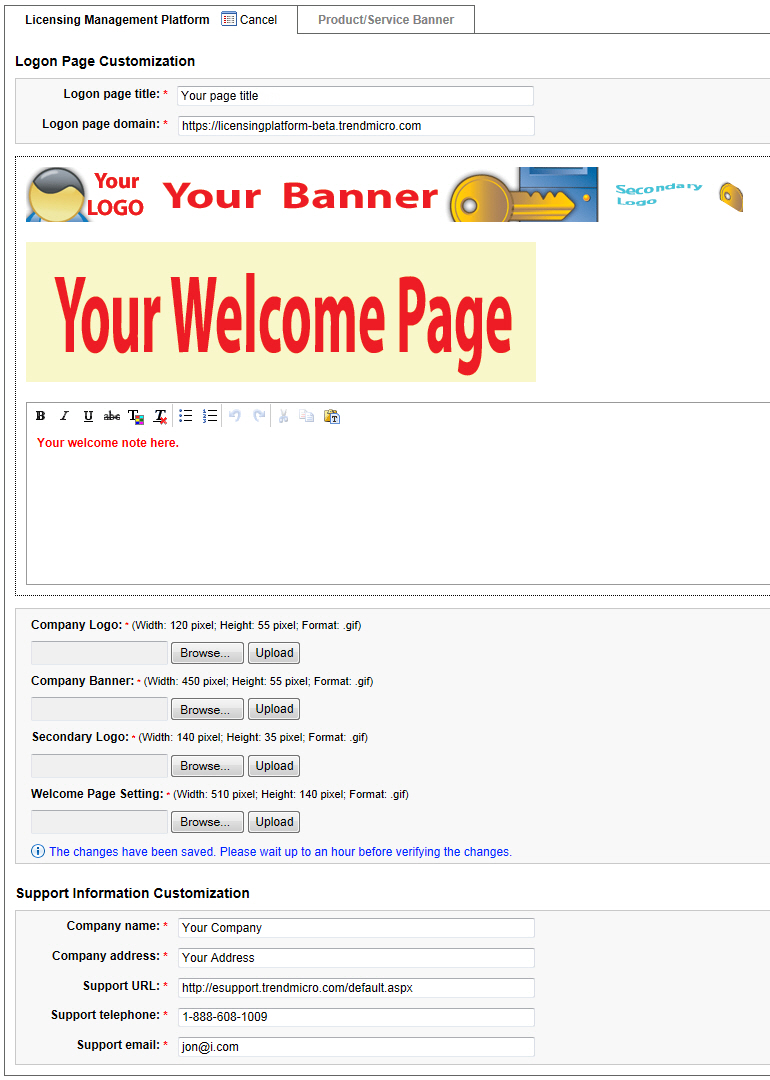
    The Modify Branding Settings page opens.
  4. Make the custom changes, scroll down on the bottom of the page, and then click Modify.
    Use the Browse and Upload buttons to set your own GIFs.
    Note
    Note
    You must follow the required image width and height sizes. Otherwise, the LMP console will not apply your own logos.
    Wait for an hour for changes to reflect on your SecureCloud web console.
  5. Click OK to confirm your changes.
    branding_sample_logonpage.jpg

    A sample customized logon page