Adding a Group Account Parent topic

Procedure

  1. On the Central Management Console Group Accounts page, click Add Group.
    The Add Group page opens.
  2. Specify the group account information.
    • Group name—type a descriptive name for the group account.
    • Description—specify a short explanation why this group account exists
      Tip
      Tip
      For example, a team within your organization can have a dedicated group account.
  3. Set the Account Administrator For This Group.
    • Local authentication—identifies the administrator through a SecureCloud account user name and password
    • LDAP authentication—identifies the administrator through an Active Directory account
      Important
      Important
      A grayed-out LDAP authentication option prompts you to configure the Administration > Authentication Settings.
  4. Click Save.
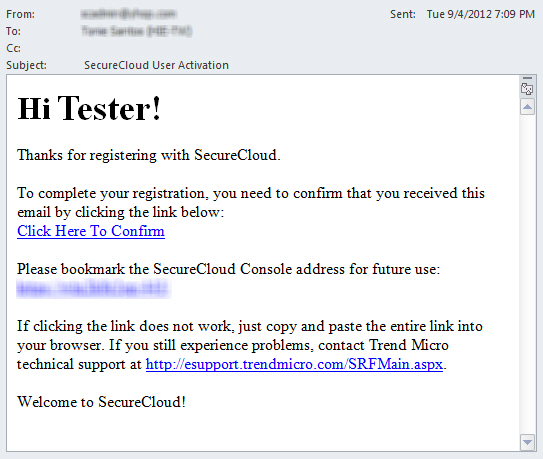
The new group account appears in the Group Accounts page with a Registration Pending status. Users belonging to that group account—including the group account administrator—will receive an email notification (see the following example) to activate the account.
cmc_group_activate.jpg
After doing so, such account will have access to the SecureCloud Key Management Server web console.