Check the agent version running
on the target host
On Windows—right-click <SecureCloud
agent install path>\C9AgentSvc, select the Properties option,
and then check the version information on the Details tab
On Debian Linux—run dpkg -s scagent
On RedHat Linux—run rpm -q scagent
One of the following reasons may cause an upgrade failure:
The Data Armor driver is locked
For example,
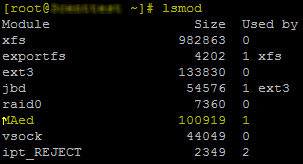
on Linux hosts, issue the lsmod command to verify
the state of MAed (the Data Armor module on Linux agents):
A Used by value equal to 1 indicates
that the Data Armor module is being used.
A file or folder is locked on a mounted device
As a workaround, restart the instance which releases any
locked processes, files, or folders. Try executing the upgrade process again.
Check the SCAgentInstall.log installation
log for any outstanding issue:
On Windows—C:\ has the install
log for an incomplete/unsuccessful installation; C:\Program Files
(x86)\Trend Micro\SecureCloud\Agent\logfiles\ saves the log for
successful installations
On Linux—there is no installation log. Check the output
on the terminal for details.
Here’s a sample log entry from SCAgentInstall.log:
[timestamp]: Windows Installer installed the product. Product Name: Trend Micro SecureCloud Agent. Product Version: 3.0.0.xxxx. Product Language 1033... Installation success.