Configuring Check Point Open Platform for Security (OPSEC) Parent topic

Procedure

  1. On the TippingPoint Advanced Threat Protection for Email management console, go to AdministrationIntegrated Products/ServicesAuxiliary Products/Services.
  2. Select Check Point Open Platform for Security (OPSEC).
  3. Under Object Distribution, select Enable.
  4. Under Server Settings, select a connection type.
    Note
    Note
    Ensure that your network configuration allows TippingPoint Advanced Threat Protection for Email to connect to the Check Point appliance.
    TippingPoint Advanced Threat Protection for Email may connect to the Check Point appliance through the secured connection port or clear connection port that is configured on the Check Point appliance. TippingPoint Advanced Threat Protection for Email also pulls the certificate from the Check Point appliance through port 18210.
    If you selected Secured connection, the OPSEC application name and SIC one-time password settings appear.
  5. Type a server name.
    Note
    Note
    The server name must be the IPv4 address of the auxiliary product.
  6. If you selected Secured connection, type the OPSEC application name and SIC one-time password.
    For more details, see Configuring a Secured Connection.
    Note
    Note
    If the one-time password is reset on the Check Point appliance, the new one-time password must be different than the previous one-time password.
  7. Type the port.
    Note
    Note
    This port must be the same port that is configured on the security gateway. For details, see Preconfiguring a Security Gateway.
  8. (Optional) Click Test Connection.
  9. Click Save.
  10. On your Check Point firewall appliance, preconfigure a security gateway. For details see Preconfiguring a Security Gateway.
  11. On the Check Point SmartDashboard console, do the following to configure your Check Point appliance for deploying suspicious objects from TippingPoint Advanced Threat Protection for Email:
    1. On the Firewall tab, go to Policy.
    2. To add a rule, click the Add Rule at the Top admin_intgr-prods_se1.jpg icon.
    3. To configure the new policy, right-click the action.
    4. Change the action to Accept.
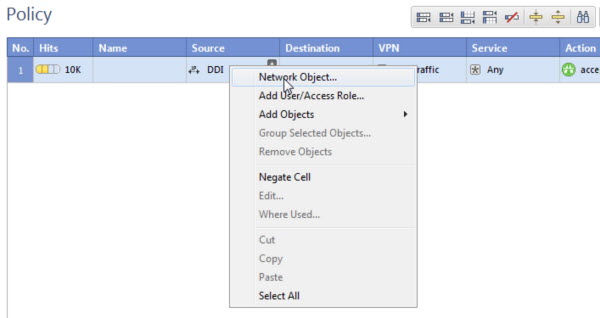
    5. Right-click the source.
      admin_intgr-prods._s.jpg
    6. Select Network Object....
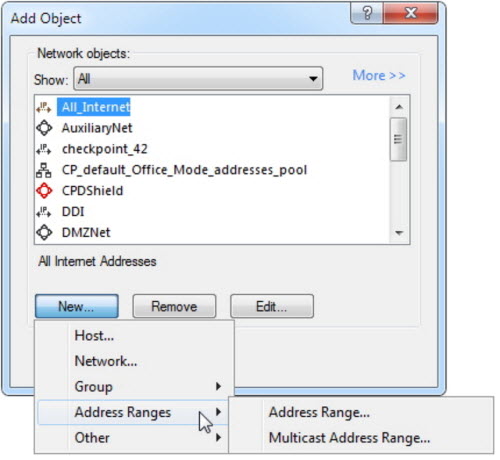
      The Add Object window appears.
      admin_intgr-prods._s1.jpg
    7. Click New ....
    8. Select Address RangesAddress Range....
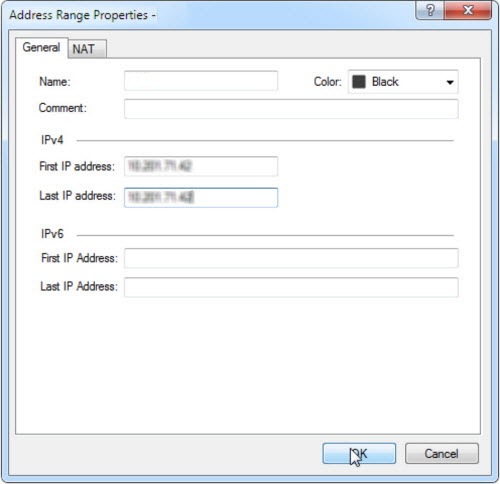
      The Address Range Properties window appears.
      admin_intgr-prods._s12.jpg
    9. In Name, type ATPE.
    10. In First IP address, type the TippingPoint Advanced Threat Protection for Email IP address.
    11. In Last IP address, type the TippingPoint Advanced Threat Protection for Email IP address.
    12. Click OK.
      The Add Object window appears.
    13. Select ATPE and then click OK.
    14. Right-click the destination.
    15. Select Network Object....
      The Add Object window appears.
      admin_intgr-prods._s1.jpg
    16. Click New ....
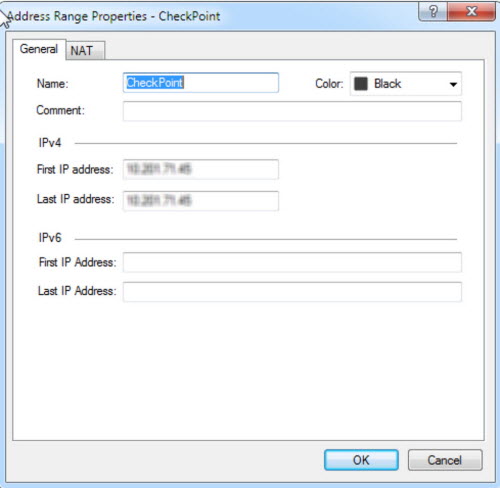
      The Address Range Properties window appears.
      admin_intgr-prods._s123.jpg
    17. Select Address RangesAddress Range....
    18. In Name, type CheckPoint.
    19. In First IP address, type the CheckPoint IP address.
    20. In Last IP address, type the CheckPoint IP address.
    21. Click OK.
      The Add Object window appears.
    22. Select CheckPoint and then click OK.
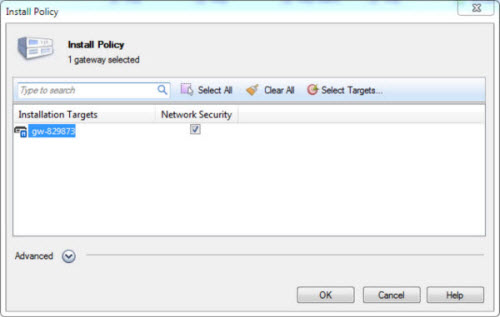
    23. Click Install Policy.
      The Install Policy window opens.
      admin_intgr-prods_se12.jpg
    24. Select the target gateway and click OK.
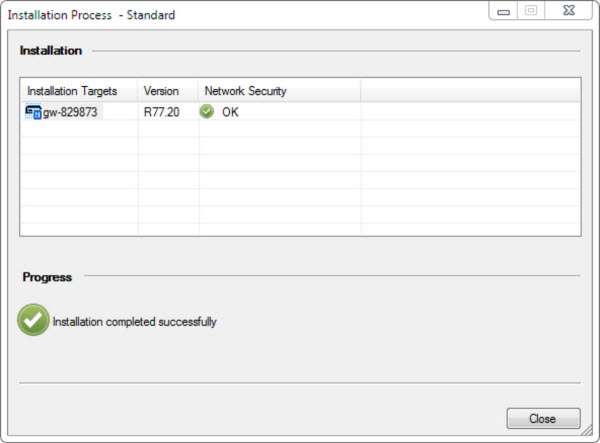
      The target gateway installs.
      admin_intgr-prods_se123.jpg
    25. Click Close.
      The Check Point appliance is enabled to receive suspicious objects from TippingPoint Advanced Threat Protection for Email.
  12. On the TippingPoint Advanced Threat Protection for Email management console, configure the following criteria to send suspicious object information from TippingPoint Advanced Threat Protection for Email to this product/service:
    • Object type:
      • Suspicious Object
        • IPv4 address
    • Risk level:
      • High only
      • High and medium
      • High, medium, and low
  13. Under Advanced Settings, click one of the following actions:
    • Reject: Packets will be rejected and a notification sent to the communicating peer that the packet has been rejected.
    • Drop: Packets will be dropped without sending the communicating peer a notification.
    • Notify: A notification about the defined activity will be sent but the activity will not be blocked.
  14. Click Save.
    The Distribute Now option appears.
  15. (Optional) Click Distribute Now to distribute suspicious objects to Check Point immediately.
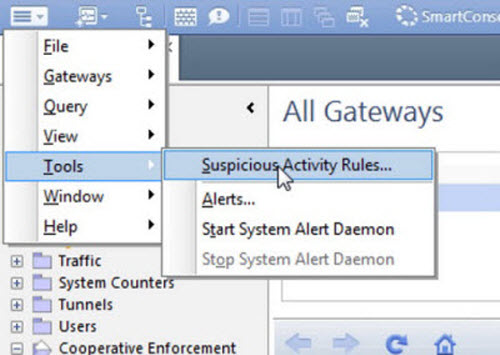
  16. To view suspicious objects distributed by TippingPoint Advanced Threat Protection for Email on Check Point SmartView Monitor, do the following:
    1. Click the Launch Menu icon and go to ToolsSuspicious Activity Rules.
      admin_intgr-prods_se1234.jpg
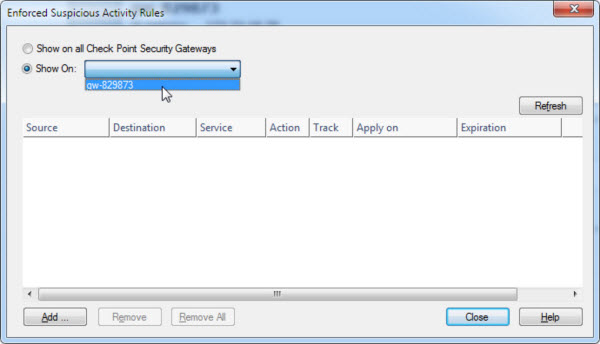
      The Enforced Suspicious Activity Rules window opens.

    2. At Show On, select the target Check Point appliance name.
      admin_intgr-prods_se12345.jpg
    3. Click Refresh.
    Suspicious objects distributed by TippingPoint Advanced Threat Protection for Email are displayed.